-
Written By Abhilash Dogra
-
Updated on May 26th, 2026
Instant Solution to Migrate IMAP to iCloud Securely
Summary: IMAP accounts are commonly used because they let users access emails from different devices while keeping everything synced. When the mailbox becomes large, managing emails can become slow & difficult to organize efficiently. Many people then prefer moving their emails to iCloud for a simpler and more organized experience across Apple devices. In this guide, we’ll look at how you can migrate IMAP to iCloud in a straightforward way without complications. We’ll also see that MacGater IMAP Backup Tool can make the process quicker and more secure with less effort.
Comparison Between IMAP and iCloud Mail
|
Feature |
IMAP |
iCloud Mail |
|
Email Access |
Depends on multiple email clients and third-party apps, which can sometimes cause inconsistency |
Built for a seamless Apple device experience. |
|
Syncing |
Syncs emails across all connected devices. |
Real-time sync across the Apple ecosystem. |
|
Storage Management |
It depends on the mail server storage limits. |
It depends on the mail server storage limits Uses iCloud storage (5GB free, expandable) |
|
Setup Process |
Requires manual configuration in email clients. |
Easy setup on Apple devices |
|
Performance with Large Mailboxes |
Can slow down with large data |
Handles large mailboxes more smoothly on Apple devices |
Prerequisites to Import IMAP to iCloud with Zero Data Loss
- Make sure your iCloud Mail account is working properly.
- Use a good internet connection before starting the transfer.
- Check if your iCloud storage has enough free space.
- Turn on IMAP access from the source mail account settings.
- Keep the app password ready if two-step verification is enabled.
How do Users Migrate IMAP to iCloud on a Mac?
Users can choose from different methods to import IMAP emails into iCloud. Below, we will go through the most suitable options for completing the migration process.
- Manual Method
- Professional Method
Approach 01: Manual Method for IMAP to iCloud Mail Migration
This approach uses the Apple Mail application to transfer emails from an IMAP account to iCloud Mail. Moreover, you will need valid IMAP account credentials and access to an active iCloud Mail account to complete the migration process.
Quick Steps to Move IMAP mailbox to iCloud:
- First, open the Apple Mail application on your Mac device.
- After that, go to the top menu bar -> click Mail -> choose Add Account.
- Then, choose Other Mail Account & provide the IMAP account details.
- Now, add your iCloud Mail account if it is not already configured in Apple Mail.
- Once both accounts appear in the sidebar, open the IMAP mailbox folders.
- Next, select the emails or folders you need to move.
- Lastly, drag & drop the selected emails from the IMAP account into the iCloud mailbox folders.
Limitations of the Manual Method:
- Transferring a large number of emails can take a lot of time.
- Users need a Mac system with Apple Mail configured properly.
- Sometimes, a few emails may not sync correctly.
- Internet problems can interrupt the transfer process.
- Users need to keep checking the migration manually.
Approach 02: Professional Method to Migrate IMAP to iCloud
The MacGater IMAP Backup Tool provides an efficient solution to transfer IMAP emails into iCloud while preserving complete mailbox data integrity. It helps users transfer emails, attachments, and folder structure securely with minimal effort. Moreover, the software supports bulk email migration and makes the whole process easier, even for non-technical users. Likewise, users can apply filters and move only selected mailbox folders if needed. Additionally, users can also use this software to Move IMAP to AOL Mail and other email platforms with complete data accuracy.
Verified Steps to Transfer IMAP emails to iCloud:
- Firstly, download and open the IMAP Backup Tool and click Continue.
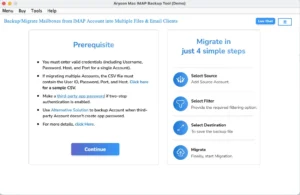
- Then, provide IMAP credentials to log in.
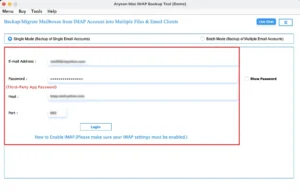
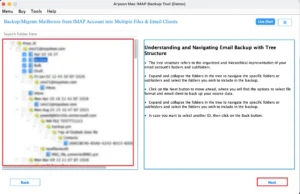
- After that, preview your mailboxes >> select >> Next.
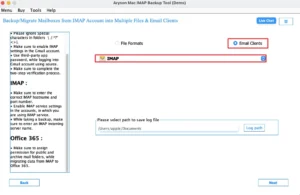
- Now, select IMAP from the list of email options.”
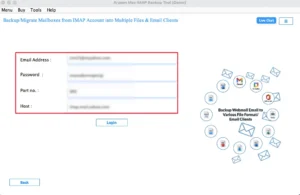
- Thereafter, enter your iCloud credentials to verify the account.
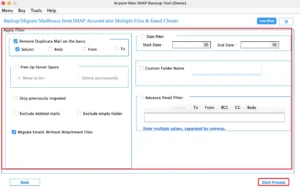
- Finally, choose the required filters and tap the Start Process button.
Note: You can also migrate IMAP to Yahoo Mail for better mailbox accessibility and secure cloud-based email access.
Real-Life Scenario:
Oliver, a marketing manager from Australia, wanted to transfer several IMAP email accounts to iCloud Mail for simpler email management on his Mac & iPhone. Initially, he tried the manual migration method, but handling large mailbox folders and syncing emails became difficult. Later, he used the MacGater IMAP Backup Tool, which transferred all his emails and attachments to iCloud securely without affecting the mailbox structure.
Time to Wrap Up
To conclude, users can choose either the manual or professional method to migrate IMAP to iCloud according to their needs. The manual method is suitable for limited email transfer, but it requires technical knowledge and considerable time. Therefore, using the MacGator IMAP Backup Tool is the best solution for secure and hassle-free migration. It efficiently performs bulk email transfer while maintaining attachments, metadata, and original folder hierarchy without any data loss.
Frequently Asked Questions
Q.1. Can I transfer IMAP emails directly to iCloud?
Ans: Yes, IMAP emails can be transferred to iCloud using the IMAP Backup Tool. The tool-based approach is more reliable and suitable for large mailbox migrations compared to manual steps.
Q.2. Can I migrate IMAP emails to iCloud without Mac?
Ans: Yes, you can migrate emails without a Mac by using the IMAP Backup Tool on Windows. It allows users to complete the migration process easily without depending on any email client.
Q.3. What credentials are required for IMAP to iCloud migration?
Ans: You need valid IMAP account login details and iCloud credentials. If two-factor authentication is enabled, an app-specific password may also be required for a smooth connection using the IMAP Backup Tool.
Q.4. Will attachments transfer during IMAP to iCloud migration?
Ans: Yes, the IMAP Backup Tool ensures that emails, along with attachments, are transferred properly. It helps maintain data integrity, so no important files or attachments are lost during migration.
About The Author:

Abhilash Dogra is a dedicated IT professional with more than 3 years of experience and has been a key member of Aryson Technology for the past 5 years. His expertise includes email migration and data recovery, with a strong focus on technologies such as MS Outlook and Office 365. In addition to this, Abhilash explores front-end technology and software development. He holds a Bachelor's degree in Computer Technology.