-
Written By Suman Rawat
-
Updated on June 1st, 2026
Export IMAP to PST File – Complete Step-by-Step Guide
User Query: “I have an IMAP email account with thousands of emails and want to save them in Outlook PST format for backup purposes. What is the easiest way to export all IMAP emails to PST while keeping attachments and folders intact?”
Summary: Need an easy way to export IMAP to PST? This guide walks you through the available methods. Many users want to save their IMAP mailbox data in Outlook PST format for backup, migration, or offline access. Here, we will discuss both manual & professional methods to complete the process. We will also explain how the MacGater IMAP Backup Tool can help export emails, attachments, and folders with ease.
What Are the Benefits of Convert IMAP to PST?
|
PST Benefit |
Description |
|
Offline Access |
View and access emails without an active internet connection. |
|
Outlook Compatibility |
Open and manage PST files directly in Microsoft Outlook. |
|
Data Portability |
Transfer mailbox data between different systems when needed. |
|
Backup |
Create a secure local copy of important mailbox data. |
|
Email Organization |
Store, archive, and manage emails more efficiently. |
Best Ways to Export IMAP to PST
There are different ways to save IMAP mailbox data in PST format. The most common options include using Outlook manually or relying on a professional migration tool.
Way 01: Migrate IMAP to PST Using Outlook
This manual method is free and suitable for users who already have their IMAP account configured in Microsoft Outlook.
Prerequisites
- Microsoft Outlook must be installed.
- The IMAP account should be properly configured.
- Mailbox synchronization must be completed before exporting.
Steps to Save IMAP Emails to PST:
- Firstly, open MS Outlook & click on the File tab.
- Navigate to Open & Export and choose Import/Export.
- Click Export to a File and proceed by selecting Next.
- Select Outlook Data File (.pst) and click Next.
- Now, select the IMAP mailbox folder that you want to export.
- Afterward, select a location on your computer to save the PST file.
- At last, click Finish to start the export process.
After completion, your IMAP emails will be saved in PST format.
Shortfalls of the Native Approach:
- Requires Outlook installation and configuration.
- Can be slow for large mailboxes.
- Mailbox synchronization must be completed first.
- Risk of incomplete exports if syncing is interrupted.
- Not suitable for bulk mailbox migration.
- The system should have enough available storage to save the PST file.
Way 02: Export IMAP to PST Using an IMAP Backup Tool
The MacGater IMAP Backup Tool offers a simple way to export IMAP emails while maintaining mailbox data, attachments, and folder hierarchy. It supports bulk migration and helps users handle large mailboxes without much effort. The software also includes filter options to export specific emails or folders. Additionally, users can use the tool to Import IMAP to Yandex Mail and migrate mailbox data to various other email platforms with accuracy.
Verified Steps to Export IMAP Mailbox to Outlook PST:
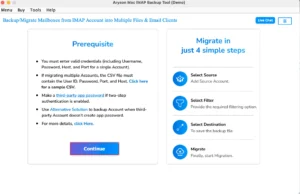
- First, download and launch the IMAP Backup Tool and press Continue.
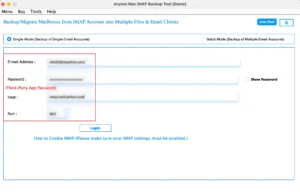
- Then, provide your IMAP credentials to log in.
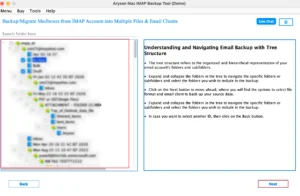
- Now, preview >> select the mailbox files/folders and click Next.
- Next, choose PST as the output format and click Next.
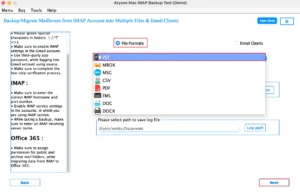
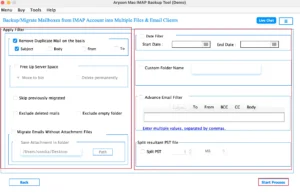
- Finally, apply filters/features if required, and tap Start Process.
Note: You can also Migrate IMAP to iCloud to access your emails seamlessly across Apple devices and benefit from secure cloud-based mailbox management.
Real-Life Scenario
Ethan works as an IT consultant in Canada and manages several IMAP email accounts. As his mailbox data kept growing, he decided to export the emails to PST so he could keep a backup and access everything easily in Outlook.
He started with the manual method. It worked, but the native process was slower than expected. Waiting for emails to sync & handling large folders took a lot of time. Looking for an easier option, he tried the MacGater IMAP Backup Tool. It exported his emails, attachments, and folders to PST without any hassle and kept the mailbox structure unchanged.
Time to Wrap Up
In this guide, we discussed both manual and professional methods to export IMAP to PST. The manual approach can work for smaller mailboxes, but it often takes more time and requires Outlook configuration. For users handling large amounts of email data, the MacGater IMAP Backup Tool offers a simpler option. It can export emails in bulk while keeping attachments, folder structure, and mailbox data intact throughout the process.
Frequently Asked Questions
Q.1. Is it possible to backup IMAP emails into PST file?
Ans: Yes, you can back up IMAP emails into a PST file using Microsoft Outlook or an IMAP Backup Tool that supports PST export.
Q.2. Can I export IMAP emails with attachments to PST?
Ans: Yes, emails can be exported along with their attachments. An IMAP Backup Tool helps ensure that attachments are preserved during the export process.
Q.3. Does Outlook export deleted items from an IMAP account to PST?
Ans: Yes, Outlook can export deleted items if they are still available in the mailbox and selected during the export process.
Q.4. Can I save multiple IMAP folders into a single PST file?
Ans: Yes, you can export multiple folders into one PST file. An IMAP Backup Tool can also combine mailbox folders into a single PST while maintaining the original folder structure.
About The Author:

Suman Rawat is a technical content writer and expert in the fields of email migration, data recovery, and email backup. Her passion for helping people has led her to resolve many user queries related to data conversion and cloud backup.