-
Written By Abhilash Dogra
-
Updated on March 27th, 2026
Simple way to Import MSG Emails to Zoho Mail – Complete guide
Summary: Managing emails on macOS can be difficult, especially when you deal with MSG files and Zoho Mail. MSG files are created by Microsoft Outlook to store emails individually. Zoho Mail provides a cloud-based platform for seamless access on Mac devices. This difference makes the direct migration difficult. As most of the Mac users increasingly rely on cloud services for flexibility and data security, the process to import MSG emails into Zoho Mail becomes important. In this blog, we will cover the reliable approaches to import MSG emails to Zoho Mail on macOS. Along with that, we will discuss how Mac MSG Converter simplifies the process.
TL;DR: Mac professionals import their MSG emails to Zoho Mail for data safety and centralised access. It can be done through Outlook and Zoho Mail’s import options or more effectively with the Mac MSG Converter, which automates the process.
Why Do Enterprises Transfer MSG Emails to Zoho Mail?
Most of the Mac users face difficulties with their MSG files due to compatibility issues, which makes cloud platforms such as Zoho Mail a more convenient option to use. We will discuss some of the key reasons behind this transfer:
- Your MSG files cannot be opened directly on macOS without any tools.
- Cloud access helps you to get email access from any device, anytime.
- Users get advanced security features that help to keep email data protected.
- You can integrate with other apps to improve overall productivity.
- Likewise, there is no need to depend on Outlook to access MSG data.
Reliable Approaches to Import MSG Emails to Zoho Mail
When it comes to importing MSG files into Zoho Mail on macOS, choosing the right method is important to avoid data loss or complications. Since Mac systems have limited support for MSG files, users rely on the given techniques to complete the process smoothly.
- Native Approach
- Automated Solution
Approach 01: Native Approach to Import MSG to Zoho Mail
Since macOS does not natively support MSG files, Zoho Mail does not offer a direct import option for them. Moreover, this method requires basic prerequisites such as Microsoft Outlook access and the process to convert your MSG files into EML format.
Simple Steps to Convert MSG Files to Zoho Mail:
- To begin, open MSG files in Outlook and save them as EML format.
- After that, you need to log in to your Zoho Mail account.
- Now, you have to go to the folder where you want to import emails.
- You can use the import option or drag and drop EML files into Zoho Mail.
- Lastly, allow the upload to complete and check the imported emails.
Limitations of Manual Methods:
- During conversion, your important email details may get skipped.
- Likewise, attachments and original formatting are not always preserved.
- It depends on tools like Outlook, which may not be available on every Mac.
- Moreover, this way is not practical for transferring a large number of emails.
- Also, there are repetitive steps that increase the chances of human error.
Approach 02: Automated Solution to Import MSG Emails to Zoho Mail
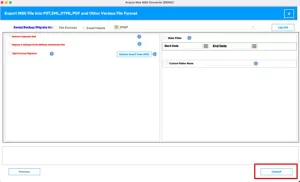
The MacGater Mac MSG Converter is an effective and user-friendly tool that simplifies the process to transfer your MSG emails to cloud platforms such as Zoho Mail. Subsequently, it removes the need for complex manual procedures in order to automate the entire migration. Moreover, it makes sure that all emails, attachments, and metadata remain intact. The software supports bulk migration, which makes it suitable for both minor and bulk MSG files. Through its simple interface, even non-technical users can perform secure migration with minimal risk of errors. You can easily import MSG to AOL Mail via the same utility.
Steps to Open MSG File in Zoho Mail:
- Download and install the MacGater Mac MSG Converter on your Mac.
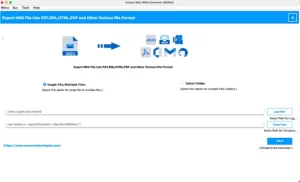
- After that, you need to add your MSG files in order to migrate.
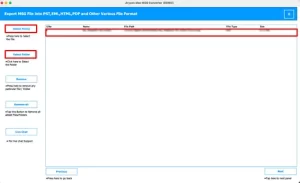
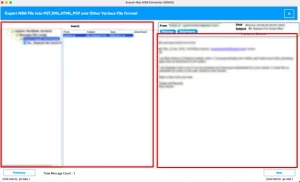
- Preview the added MSG files to verify email content and attachments.
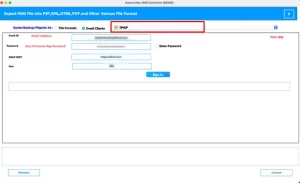
- Now, select Zoho Mail (or IMAP) as the destination email platform.
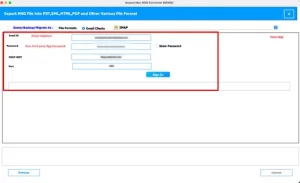
- Then, provide your Zoho Mail credentials to connect the tool securely.
- You can apply any filters if needed, such as date range or specific folders.
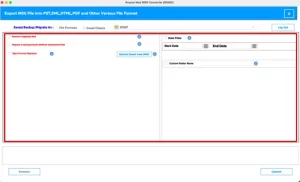
- Finally, click Convert in order to migrate MSG files to Zoho Mail.
End Note
To conclude, the process to import MSG emails to Zoho Mail on macOS can be difficult without the right approach. While the manual method may work for a few emails but is slow and prone to errors. The automated solution provides a secure and fast solution that preserves all email attachments and metadata, even for large volumes. Likewise, this tool offers user privacy as it does not store any credentials or organisational data.
Frequently Asked Questions
Q.1. Is it possible to Open MSG file in Zoho Mail without Outlook?
Ans: Yes, it is possible with the help of MacGater Mac MSG Converter. The tool allows you to access and convert MSG files into a format compatible with Zoho Mail, eliminating the need for Outlook.
Q.2. Can I transfer MSG emails to Zoho Mail using IMAP settings?
Ans: Yes, you can use IMAP settings with the help of the above-discussed tool to directly migrate MSG emails to your Zoho Mail account. You just need to enter your Zoho Mail credentials, and the tool will securely transfer the data.
Q.3. Can I import MSG files directly into Zoho Mail?
Ans: No, Zoho Mail does not support direct import of MSG files. However, the MacGater Mac MSG Converter makes this possible by converting MSG files into a supported format or directly migrating them to Zoho Mail without data loss.
About The Author:

Abhilash Dogra is a dedicated IT professional with more than 3 years of experience and has been a key member of Aryson Technology for the past 5 years. His expertise includes email migration and data recovery, with a strong focus on technologies such as MS Outlook and Office 365. In addition to this, Abhilash explores front-end technology and software development. He holds a Bachelor's degree in Computer Technology.