-
Written By Suman Rawat
-
Updated on April 9th, 2026
How to Migrate IMAP to Office 365 on Mac Step-by-Step
User Query:
Sophia_M on Mac Support Forum Ask:
I have several IMAP email accounts on my Mac and need to transfer all my emails to Office 365, but I’m unsure how to do it safely.
What is the most secure way to import IMAP to Office 365 on macOS that keeps all folders, attachments, and email details intact?
Summary: IMAP and Office 365 are widely used to handle your email data, but they differ in features and ease of use. IMAP is used for basic email syncing, while Office 365 provides cloud storage and better security, which makes it a suitable option for most Mac users. Because of this, most of the Mac users need a reliable way to move their emails and folders from IMAP to Office 365. In this blog, we will outline the most reliable and effective approaches to migrate IMAP to Office 365. In addition, we will introduce the MacGater IMAP Backup Tool for error-free migration.
Why Do Users Migrate IMAP Email to Office 365?
There are some more common reasons why most of the users choose to migrate:
- You can access emails and contacts from any device through the cloud.
- It provides built-in encryption, threat protection, and security updates.
- Moreover, you can work efficiently with Teams, SharePoint, and OneDrive.
- Built-in backup and recovery tools in Office 365 help safeguard your data.
- Likewise, you can connect easily with Microsoft apps and third-party tools.
Top Approaches to Migrate IMAP to Office 365
When it comes to move your emails from IMAP to Office 365, there are two main approaches that most of the users follow. The choice of method depends on your technical skills and specific migration requirements.
- Built-in Technique
- Automated Solution
Approach 01: Built-in Technique to Import IMAP email to Office 365
This approach is generally used for your small mailboxes or individual accounts & allows you to directly transfer emails. You can easily move emails through an email client such as Apple Mail or Outlook for Mac.
Easy Steps to Migrate from IMAP to Office 365:
- Firstly, add your IMAP account to Apple Mail or Outlook on your Mac.
- After that, you have to add your Office 365 account to the same email client.
- Now, select the folders that you want to move from the IMAP account.
- Drag and drop the selected emails into the corresponding Office 365 folders.
- Lastly, allow the client to sync all emails to Office 365 completely.
Limitations of the Built-in Technique:
- This way supports only email migration, not contacts or calendars.
- Moreover, it can be slow for large mailboxes or multiple accounts.
- Users require technical knowledge to configure server settings.
- There is a higher risk of errors or skipped emails during migration.
- Likewise, it lacks error-handling features for failed items.
Approach 02: Automated Solution to Migrate IMAP to Office 365
The MacGater IMAP Backup Tool is the secure and easiest solution to transfer your emails from IMAP accounts to Office 365. It supports large mailboxes and preserves folder structure. This solution supports bulk migration and selective filters, and it also reduces the risk of errors. Moreover, this makes it a convenient option for Mac users who want a fast, secure, and hassle-free way to transfer their emails. Likewise, you can quickly migrate IMAP to Gmail with the same utility.
Steps to use the IMAP to Office 365 migration tool:
- Firstly, you need to download the MacGater IMAP Backup on your Mac.
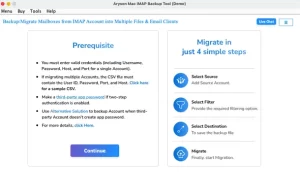
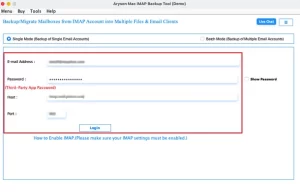
- Launch the tool and log in to your IMAP account with valid credentials.
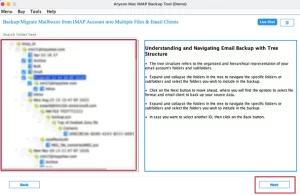
- After that, you have to select the folders or emails you want to migrate.
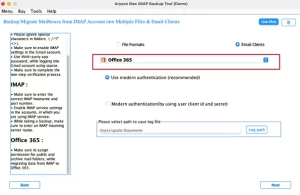
- Choose Office 365 as the destination >> enter your account details.
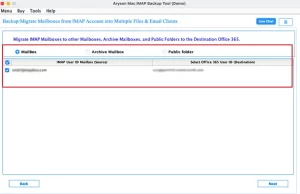
- Then, allocate the mailboxes as needed and select the correct target type.
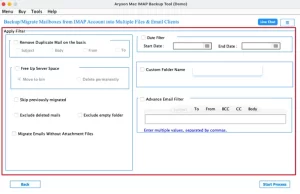
- Finally, you have to apply optional filters and click Start Process.
Conclusion
To conclude, the process to migrate IMAP to Office 365 on a Mac can be difficult without the right method. The built-in Office 365 migration can be used for your small file transfers, but it has several drawbacks and can take more time. On the other hand, an automated tool provides a quicker and more accurate way to migrate your emails in less time. Thus, opt for the right method that guarantees a smooth migration, prevents errors, and allows Mac users to access all their email data in Office 365 safely.
Frequently Asked Questions
Q.1. Can I import IMAP email to Office 365 without losing data?
Ans: Yes. You can migrate IMAP emails to Office 365 without data loss by using the MacGater IMAP Backup Tool, which preserves folder structure and email properties during migration. It ensures data integrity throughout the process.
Q.2. Is it possible to migrate multiple IMAP accounts to Office 365 at once?
Ans: Yes, automated tools support bulk migration, allowing you to transfer multiple IMAP accounts in a single process. This feature saves time and ensures consistent migration across all mailboxes.
Q.3. What are the steps to migrate IMAP Email to Office 365?
Ans: To migrate IMAP emails, follow these steps using the MacGater IMAP Backup Tool:
1. Install the tool on your Mac.
2. Log in to your IMAP account.
3. Select emails or folders.
4. Choose Office 365 as the destination.
5. Assign mailboxes and target type.
6. Apply filters and start migration.
Q.4. Which is the safest IMAP to Office 365 migration tool?
Ans: A secure option is MacGater IMAP Backup Tool, as it supports direct migration, maintains data accuracy, and includes features like filters and duplicate removal to ensure a safe and smooth transfer process.
About The Author:

Suman Rawat is a technical content writer and expert in the fields of email migration, data recovery, and email backup. Her passion for helping people has led her to resolve many user queries related to data conversion and cloud backup.