-
Written By Abhilash Dogra
-
Updated on May 4th, 2026
How to Migrate IMAP Email to New Server? Step-by-Step Simple Guide
Summary: Moving emails from one server to another becomes necessary when you change hosting or upgrade your setup. IMAP accounts keep emails stored on the server, so while shifting to a new server, you need to move that data carefully. If not done properly, some emails or folders can get missed, and that can interrupt regular work. Therefore, most of the users look for a simple way to handle the transfer without facing any difficulties. In this article, we will discuss the reliable ways to migrate IMAP Email to new server, which include the MacGater Mac IMAP Backup Tool for accurate conversion.
TL;DR: Enterprises move their IMAP emails to a new server for smooth data transfer and uninterrupted email access while upgrading infrastructure. This process can be completed either through a manual IMAP setup method or via a dedicated migration tool that offers a quicker and more dependable transfer.
Why Do Users Move IMAP Email to New Host?
There are common reasons why most of the enterprises choose to move to new
host from IMAP:
- Emails take longer to open, send, or receive on the current server.
- The mailbox is close to its storage limit and cannot handle more emails.
- The server goes offline often, which affects regular email use.
- The current setup does not provide enough security for email data.
- Moreover, users want better control over email accounts and their settings.
Proven Approaches to Migrate IMAP to New Server
The procedure to choose the right migration method depends on factors like the number of mailboxes, available technical resources & acceptable downtime:
- Native Method
- Professional Solution
Approach 01: Native Method to Migrate IMAP Email to New Server
With this approach, you first configure both the old and new IMAP accounts in an email client. After that, you can move your emails from one account to the other.
Step 01: Add Email Accounts
- Open Microsoft Outlook or any IMAP-supported email client.
- After that, add your old IMAP account via the correct server details.
- Now, you have to add your new IMAP server account to the same client.
Step 02: Sync and Prepare Mailboxes
- Let both accounts fully sync so all folders and emails are visible.
- Thereafter, you have to create the required folders in the new account if needed.
Step 03: Transfer and Verify Data
- You have to move emails from the old account to the new by drag & drop.
- Then, you have to wait for the data to sync completely to the new server.
- At the end, sign in to the new account and confirm that all emails have been migrated successfully.
Cons of Manual IMAP Migration
- The process can take a lot of time when your mailbox has numerous emails.
- Both accounts need correct IMAP settings, or the connection may not work.
- Moreover, some of your folders may not move properly in certain cases.
- Subsequently, large mailboxes can slow down syncing between servers.
Approach 02: Professional Solution to Migrate IMAP to New Server
The MacGater IMAP Backup Tool is an appropriate utility that is built for IMAP mailbox migration and backup. It handles direct transfer to Office 365, Gmail, G Suite, and other IMAP-configured servers. Moreover, this software allows users to select specific data using filters such as date range and duplicate detection based on email fields. You can also refer to this guide on migrate IMAP to Gmail if you want to move IMAP emails into a Gmail account.
Steps to Transfer IMAP Email to New Host:
- Run the MacGater IMAP Backup Tool on your system.
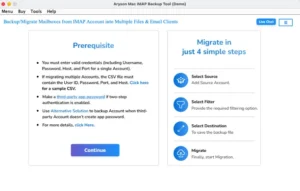
- After that, you have to input the required credentials >> Login.
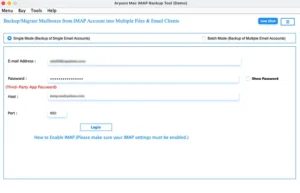
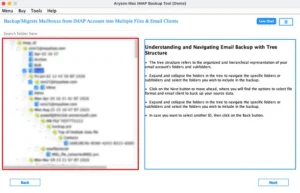
- Now, you preview from the given panel & pick the desired files to migrate.
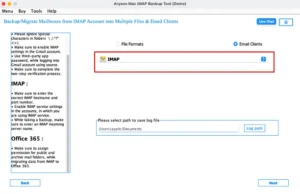
- Thereafter, you have to choose IMAP from the given email client list
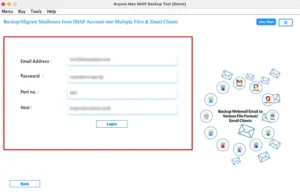
- In this step, you have to enter the correct login details and proceed further.
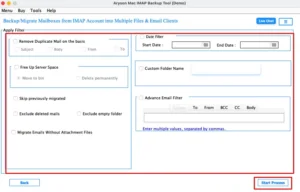
- Apply the optional filters available in the panel >> Start Process for export.
Conclusion
In the above blog, we have covered reliable methods to migrate IMAP to new server. The manual way can work when there are only a few emails, but it takes time and needs careful handling. When the mailbox is large, it becomes harder to manage step by step. In such cases, using the above-discussed tool can make things more manageable. It supports different email services and also gives options to save data in various formats. It also has a demo version with a small limit, so you can try it first.
Frequently Asked Questions
Q1. Which utility is best to migrate IMAP to a new server?
Ans: The MacGater IMAP Backup Tool is a reliable option for IMAP migration. It supports direct transfer between IMAP accounts and other platforms like Gmail and Office 365.
Q2. What is the best way to migrate IMAP to a new server?
Ans: The best method depends on your needs. Manual setup works for small mailboxes, while the above software is better for faster and error-free migration.
Q3. Can I migrate IMAP emails manually or do I need a tool?
Ans: Yes, manual migration is possible via an email client, but for large data or accuracy, you must opt for the above-discussed IMAP backup tool.
About The Author:

Abhilash Dogra is a dedicated IT professional with more than 3 years of experience and has been a key member of Aryson Technology for the past 5 years. His expertise includes email migration and data recovery, with a strong focus on technologies such as MS Outlook and Office 365. In addition to this, Abhilash explores front-end technology and software development. He holds a Bachelor's degree in Computer Technology.