-
Written By Abhilash Dogra
-
Updated on May 5th, 2026
How to Migrate IMAP Emails to Zoho Mail- Complete Solution
Summary: IMAP is a standard email protocol that is used by most of the email providers. While Zoho Mail is a complete business email platform with its own storage & interface. They don’t just sync automatically, so you have to actually move the data yourself. The two platforms work differently in how they handle email storage and access, which is exactly why a proper migration process matters. This blog walks you through the process to migrate IMAP emails to Zoho Mail for a smooth migration. We will also introduce the MacGater IMAP Backup Tool for smooth migration.
TL;DR: Users switch from IMAP emails to Zoho Mail for better control & overall email handling. This can be done either through Zoho Mail’s built-in migration option or by using an IMAP Backup Tool for a quicker and more flexible process.
Common Reasons to Migrate IMAP to Zoho Mail
There are several reasons why most of the users choose this migration:
- A strong security setup keeps your emails protected from unwanted access.
- Built-in tools, such as Notes, help you to manage your tasks in one place.
- There is better control over the inbox with folder management.
- Likewise, there is stable service with fewer chances of delays or downtime.
Top Methods to Migrate IMAP Emails to Zoho Mail
This migration can be done via two distinct methods, each suited to different user requirements and data volumes.
- Automated Solution
- Manual Approach
Method 01: Automated Solution Migrate IMAP Emails into Zoho Mail
MacGater IMAP Backup Tool is a reliable solution that helps you to connect to any IMAP-enabled server & migrate emails to Zoho Mail. Moreover, users can choose to migrate their emails without attachments, exclude specific folders & preserve the original folder hierarchy throughout the process. Likewise, the free demo version for Mac allows you to migrate up to 50 emails per folder. For a detailed walkthrough, check out our guide on migrate IMAP to New Server for a secure migration.
Quick Tutorial to Migrate IMAP Emails to Zoho Mail:
- Firstly, open the MacGater IMAP Backup Tool on the Mac system.
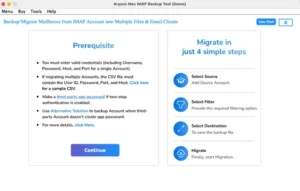
- After that, pick Single or Batch Mode >> Enter IMAP account credentials.
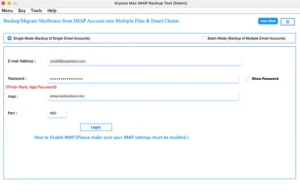
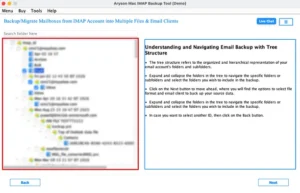
- In this, you should simply review the given data >> pick whatever you need.
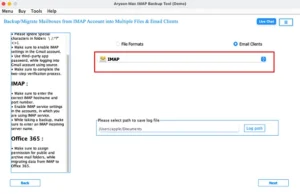
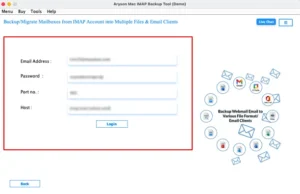
- You have to choose IMAP Mail >> and input the Zoho Mail details.
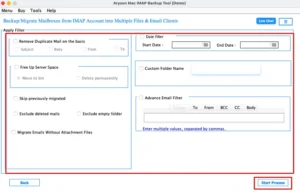
- Thereafter, you have to apply filters such as Exclude Folders if needed.
- Finally, press Start Process to migrate emails from IMAP to Zoho Mail.
Method 02: Manual Approach to Move IMAP Data into Zoho
In this native approach, Zoho Mail has a built-in IMAP migration option that lets its users transfer their emails directly from their existing IMAP account.
Quick Tutorial to Migrate IMAP Emails to Zoho Mail:
- To begin, you have to sign in to your Zoho Mail account.
- After that, open Settings >> migration or mail account section.
- Now, you need to select the option to add an IMAP account for migration.
- You need to simply provide IMAP email address along with login credentials.
- Enter the required server details. >> choose the folders you want to transfer.
- Thereafter, you have to adjust sync if needed >> start the migration.
- Once done, you can check your Zoho Mail inbox to confirm the data transfer.
Limitations of the Manual Method:
- This method takes more time when you handle large volumes of emails.
- Moreover, small mistakes in settings can interrupt or fail the process.
- Some emails or folders may not transfer if the setup is not done properly.
- There is no option to choose specific emails using advanced filters.
- Users require a stable and continuous internet connection.
End Note
This guide covered various approaches to migrate IMAP emails to Zoho Mail. Both the methods covered in this guide serve different purposes. On one hand, the manual approach works for your basic, small-scale transfers at no cost. While the automated IMAP Backup Tool for Mac is a more reliable & efficient utility that works for bulk & single file migration. Likewise, you can even try the free demo version to explore its features.
Frequently Asked Questions
Q.1. How can I migrate IMAP to Zoho Mail without data loss?
Ans: Use the MacGater IMAP Backup Tool, which transfers emails safely while keeping data intact and organized.
Q.2. How do I import IMAP emails into Zoho Mail manually?
Ans: Log in to Zoho Mail, go to settings, add your IMAP account, enter details, and start the migration.
Q.3. What file formats are supported for IMAP to Zoho Mail migration?]
Ans: The MacGater IMAP Backup Tool supports formats like PST, PDF, MBOX, EML, and MSG, and also allows direct migration to Zoho Mail.
Q.4. Is it possible to move IMAP emails into Zoho Mail directly?
Ans: Yes, you can either use Zoho Mail’s built-in migration or the above professional tool for direct transfer.
About The Author:

Abhilash Dogra is a dedicated IT professional with more than 3 years of experience and has been a key member of Aryson Technology for the past 5 years. His expertise includes email migration and data recovery, with a strong focus on technologies such as MS Outlook and Office 365. In addition to this, Abhilash explores front-end technology and software development. He holds a Bachelor's degree in Computer Technology.