-
Written By Abhilash Dogra
-
Updated on November 25th, 2025
Convert EML to Word – Simple Guide to DOC & DOCX Conversion
Summary: EML files are very common when users want to store individual email messages, but they’re not always the most convenient format when it comes to editing, printing, or sharing the content. There are many simple ways to convert EML files into Word documents. In this blog, we will explain both the manual and professional MacGater EML Converter tool to convert EML to Word. In addition, if you have EML files in bulk to import, it is highly recommended to use reliable software for hassle-free conversion.
Reasons to Convert EML File to Word
EML files serve well for saving emails, but they often create problems when you want to edit, share, or print them. That’s where the Word file comes in. You can freely change the email content, add notes, or remove unnecessary parts.
- Word files open easily on most computers and phones without email software.
- Printed Word documents keep their structure intact; hence, they are appropriate for reports or records.
- It is easy to organize text, adjust format, and present content clearly in Word.
- Important emails stay safe in Word format even if your email client becomes outdated.
- If you need flexibility and ease of use, the Word format is the best choice.
How to Convert EML to Word
Now that you understand why we convert EML files to Word documents, let’s see some methods used for migration. It is according to your needs and what you prefer:
Method 1: Convert EML to DOCX Manually
If you already use Microsoft Outlook and are familiar with MS Word, this method can be performed with the help of Outlook and MS Word.
Perform the given steps in the following:
Step 1: Export EML to HTML via Outlook
- Open Outlook on your pc.
- Select the EML file using Outlook.
- Go to File > Save As.
- Choose HTML as the file format.
Step 2: Using Word to Convert EML to Doc/Docx
- Find the saved file on your PC.
- Right-click and open it in Word.
- Select File > Save As.
- Choose .doc or .docx as the file format.
You’ll get your email content inside a Word file. This is fine for single files, but too slow for bulk files.
Method 2: Automated Solution for EML to Text Conversion
When you have multiple EML files or want a more accurate and time-efficient method, using the MacGater EML converter Tool is a better choice. This software easily converts EML to many file formats in bulk, without data loss. It can be used for the support of bulk conversion of EML files to Doc/Docx and other formats. In addition, it preserves original email structure, metadata, and formatting. It has a very Simple interface that requires no technical background and can convert EML to PDF, PST, text, doc, etc.
Here are some steps to convert EML to Word:
- Firstly, download and run the MacGater EML Converter.
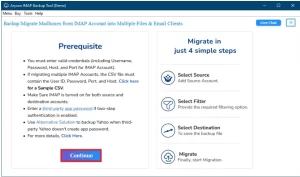
- Tap on the Select File/Select Folder option and open the EML file.
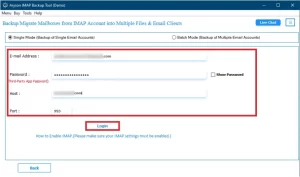
- Now, you can preview your selected EML file on the Advanced Panel.
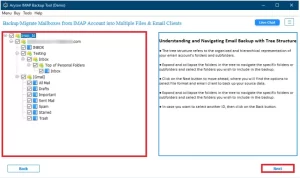
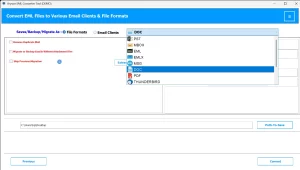
- Choose DOC as the saving format, then select the destination path.
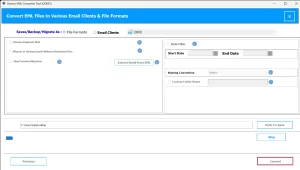
- Click Convert to Convert EML to Word Document.
Conclusion
EML files are fine for basic storage, but Word documents give you much more control. For short tasks, the manual route works well. But for bulk conversion or better accuracy, an EML converter is the smarter solution. In both ways, you now have clear steps to convert EML to Word format without stress.
Frequently Asked Questions
Q.1 How do I convert an EML file to a Word document?
Ans. You can convert the EML file using the MacGater EML Converter Tool. Here’s how you do it:
1. Download and install the EML converter Tool.
2. Launch the software and select EML to proceed.
3. Click on Select File/Select Folder to add your EML files or folder.
4. Choose DOC as the saving format from the list.
5. Select the destination path where you want to save the output.
6. Click Convert to start the conversion process.
Q.2 Can I batch convert multiple EML files to Word documents?
Ans. Yes! If you have a lot of EML files, using the MacGater EML converter Tool is the best option. It lets you convert many files at once, which saves you a lot of time compared to doing it manually one by one.
Q.3 Is it safe to use online EML to Word converters?
Ans. It depends on which tool you are using. Some online tools are safe, but others might not protect your privacy. If your emails have personal or sensitive information, it’s better to use a trusted desktop tool that works offline on your computer, like the MacGater EML converter Tool.
Q.4 Can I convert EML to Word without using Outlook?
Ans. Absolutely! With the help of the above-mentioned utility, you can always convert your EML files to Word without Outlook.
About The Author:

Abhilash Dogra is a dedicated IT professional with more than 3 years of experience and has been a key member of Aryson Technology for the past 5 years. His expertise includes email migration and data recovery, with a strong focus on technologies such as MS Outlook and Office 365. In addition to this, Abhilash explores front-end technology and software development. He holds a Bachelor's degree in Computer Technology.