-
Written By Abhilash Dogra
-
Updated on November 25th, 2025
How to Import EML into Thunderbird in Easy Steps
Summary: If you have emails saved in EML format and wish to move them into Thunderbird, this guide will be quite helpful. Thunderbird is a popular email client for desktop that also supports multiple file formats, including EML. However, many users cannot transfer when they try to import EML into Thunderbird directly because the process isn’t always obvious. This technical post explains about the transfer using MacGater EML Converter to make sure your emails are safely imported.
Major Reasons to Convert EML to Thunderbird
- Users often save emails as EML files for backup. Importing them back into Thunderbird makes them easy to view and manage.
- Switching from another email client that supports EML format (like Windows Live Mail, Outlook Express, or Apple Mail) to Thunderbird.
- Sometimes, email data is exported as EML after recovery from a crashed or corrupted client.
- Thunderbird works on Windows, Mac, and Linux, making it convenient to import EML files in Thunderbird for accessibility across platforms.
Top Techniques to Import EML into Thunderbird
Many users have collections of emails stored in EML format and want to access them in Mozilla Thunderbird. Two practical techniques are given below:
- The first one is the Manual method
- And the second one is an automated tool
Technique 1: Manual Method to Import EML Files to Thunderbird
Thunderbird does not provide a direct EML import. But with the help of add-ons, you can achieve it easily.
- First, open Mozilla Thunderbird.
- Click on the Menu button in Thunderbird.
- After that, navigate to Add-ons and Themes.
- Search and install ImportExportTools NG.
- Restart Thunderbird to enable the add-on.
- Create or select the folder where you want to import your EML files.
- Similarly, choose ImportExportTools NG > Import all messages from a directory > Just from the directory.
- Browse and select the folder of EML files.
- Finally, the emails will be imported into the Thunderbird account.
Limitations of the Manual Built-in Method
- Importing thousands of EML files at once can be very slow.
- Some users prefer not to rely on third-party extensions.
- Sometimes, email formatting or attachments may not transfer perfectly.
For a hassle-free experience, a professional solution may be the better option.
Technique 2: Easily and Quickly Import EML into Thunderbird
The MacGater EML Converter Tool is always a good choice when users are working with large data files to migrate their emails. This is the recommended utility for simplifying the import process of EML files into Thunderbird, and you can also import EML to Office 365. During the import process, it can maintain the folder and its hierarchy, making the migration seamless and hassle-free with no data loss.
How to Import EML files in Thunderbird Using the Tool
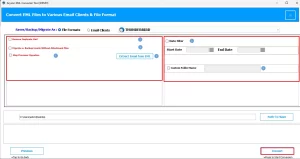
- Firstly, download and install MacGater EML Converter on your system.
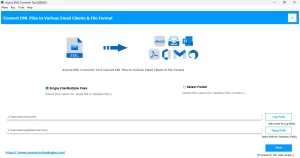
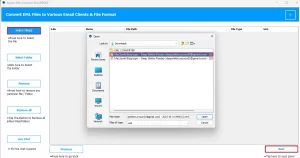
- After that, click on the Select files/folders, and upload files in the software.
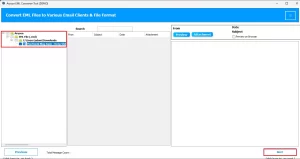
- From the next panel, you can preview and cross-verify the selected EML data>>Next.
- Choose Thunderbird as the saving option.
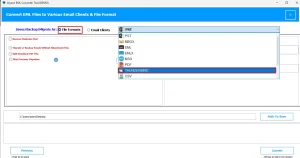
- Click Convert to start the import process.
Final Thoughts
When you import your EML files to Thunderbird, you can do it if you follow the above-mentioned technique. If there are just a few emails, the blog’s mentioned manual add-on method works fine. However, when you want to import EML into Thunderbird in bulk while maintaining the folder’s formatting, then the Macgater EML Converter is better. With these methods, you can easily open EML files in Thunderbird and manage your emails without any hassle.
Frequently Asked Questions
Q.1 How do I import EML files into Thunderbird?
Ans. Follow the steps below for importing your EML files:
1. Download, install, and run the MacGater EML Converter Tool.
2. Select the EML file using the Browse button and click Next.
3. Choose the folders you need to convert and tap Next.
4. Opt for the saving format as Outlook PST from the drop-down list.
5. Go for the other built-in features of the software.
6. Click Convert to start the EML to PST file conversion process.
7. At last, you can also download the process report.
Q.2 Can I open an EML file directly in Thunderbird without importing?
Ans. Yes, Macgater EML Converter can open an EML file in Thunderbird by selecting file. Choose Thunderbird as your default email client. This allows you to read the message instantly. However, the email won’t be saved permanently unless imported.
Q.3 Will importing EML files affect my existing Thunderbird emails?
Ans. No, importing EML files will not delete or replace your existing Thunderbird emails. The new messages are simply added to the folder you choose. This way, your current mailbox stays safe and unchanged.
Q.4 What should I do if my EML files don’t open correctly in Thunderbird?
Ans. First, confirm that the EML files are not corrupted or incomplete. If the issue continues, try re-importing them using the ImportExportTools NG add-on. For bulk or error-free conversion, consider using the MacGater EML Converter Tool.
Q.5 Which is the best tool to convert EML files to Thunderbird?
Ans. The MacGater EML Converter Tool is a reliable choice for converting EML files. It transfers emails directly into Thunderbird without extra add-ons. The tool also preserves email formatting, attachments, and folder hierarchy.
About The Author:

Abhilash Dogra is a dedicated IT professional with more than 3 years of experience and has been a key member of Aryson Technology for the past 5 years. His expertise includes email migration and data recovery, with a strong focus on technologies such as MS Outlook and Office 365. In addition to this, Abhilash explores front-end technology and software development. He holds a Bachelor's degree in Computer Technology.