-
Written By Suman Rawat
-
Updated on May 12th, 2026
How to Export Office 365 to EML on Mac – Expert Solution
Summary: EML is a common email file type used to save complete email information, including sender details, recipient details, subject line, message text, attachments, and other email-related information. Most of the Mac users who work with Office 365 prefer to export their emails to EML format for backup creation and secure long-term storage. In this guide, we will explain reliable ways to export Office 365 to EML on Mac, which include the MacGater Office 365 Mailbox Backup Tool for easy transfer.
Why Export Emails from Office 365 to EML on Mac?
Most of the users choose the EML format for several management-related reasons. Some of the major benefits include:
- EML files help you to create secure local backups of Office 365 emails.
- The format supports multiple email applications for smooth migration.
- Moreover, your exported emails remain accessible offline on Mac systems.
- Your EML files will be shared individually without affecting your metadata.
- Likewise, the format provides long-term email preservation outside the Office 365 environment.
Proven Approaches to Export Office 365 to EML on Mac
Below, we will discuss the two most reliable approaches that accomplish the export process:
- Manual Method
- Automated Solution
Approach 01: Manual Method to Save Outlook 365 Emails as EML
This approach uses Outlook in Office 365 to save your emails individually in EML format. Moreover, it is suitable for users who need to handle limited email data and have basic technical skills
Steps to Transfer Office 365 Emails to EML:
- To begin, you need to log in to your Office 365 account.
- After that, you have to open Outlook from the application panel.
- Now, you need to navigate to the mailbox and select the email for export.
- Thereafter, you need to simply click the three-dot menu option.
- In this step, you have to simply choose the Save As option.
- Finally, you have to select the preferred location to save the EML file.
Limitations of the Manual Method:
- By this method, your emails must be exported one by one.
- Bulk export of your emails, attachments, or other data is not possible.
- This manual processing becomes lengthy for your large mailboxes.
- Moreover, the folder hierarchy may not remain properly organized.
- Likewise, internet connectivity is required during the process.
Approach 02: Automated Solution to Export Office 365 to EML
MacGater Office 365 Mailbox Backup Tool is an advanced utility designed to simplify your Office 365 email export on Mac systems. Along with EML, the tool also supports formats such as PST, MSG, and many more. The software includes useful features such as date-based filtering, folder hierarchy preservation, & others. Likewise, its easy-to-use interface that makes the process convenient for both technical and non-technical users. For a detailed walkthrough, refer to this guide on how to export Office 365 mailbox to CSV.
Easy Way to Convert Office 365 Mailbox to EML:
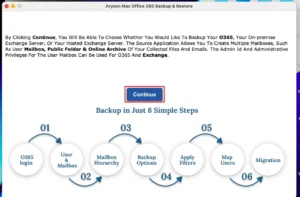
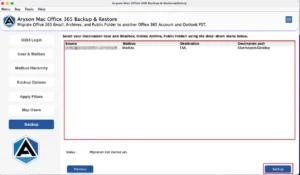
- Firstly, open the MacGater Office 365 Mailbox Backup Tool >> Backup.
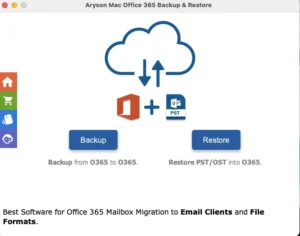
- Then, you can click on Continue to move further in the process.
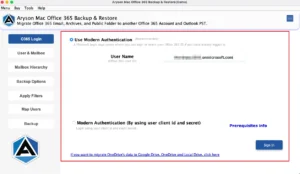
- You have to sign in using Office 365 account credentials.
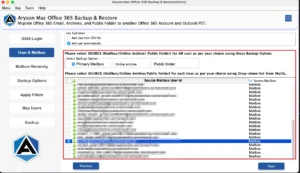
- Now, you have to select the required mailbox folders.
- Thereafter, you need to choose EML as the saving format and apply filters.
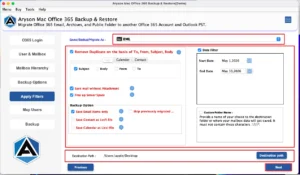
- Finally, you need to click on the Backup button to start the migration.
Manual vs Automated Method: Quick Comparison
|
Comparison Factor |
Manual Method |
Office 365 Backup Tool |
|
Export Process |
This only processes one email at a time. |
It supports your bulk export. |
|
Speed |
It is slow for your large data. |
This provides a faster export process. |
|
Folder Structure |
In this method, the folder structure is not maintained |
This method provides a fully preserved structure. |
|
Technical Complexity |
It requires moderate manual work |
Easy approach and automated to follow. |
|
Additional Filters |
You don’t get any built-in filters to apply. |
Users can configure the filters for accurate conversion. |
Final Words
To conclude, you can easily export Office 365 to EML on Mac with the above shared approaches. While the manual Outlook method works for smaller tasks, it becomes difficult to manage when you deal with large mailboxes. On the other hand, the automated solution provides a more efficient solution by supporting bulk export and provide you with advanced filtering options. Likewise, its simplified workflow allows users to complete the export process without any technical complications.
Frequently Asked Questions
Q.1. Can I convert Office 365 mailbox to EML without Outlook?
Ans: Yes, the Office 365 Backup Tool can export Office 365 emails to EML without requiring Outlook installation.
Q.2. Is it possible to bulk export Office 365 emails to EML files?
Ans: Yes, the tool supports bulk export of Office 365 emails to EML in a single process.
Q.3. How long does it take to convert Office 365 mailbox to EML file?
Ans: The time depends on mailbox size and internet speed, but the tool performs the export quickly.
Q.4. How to export Office 365 emails to EML with attachments and metadata?
Ans: Select EML as the output format in the Office 365 Backup Tool and start the export. The tool preserves attachments and metadata automatically.
About The Author:

Suman Rawat is a technical content writer and expert in the fields of email migration, data recovery, and email backup. Her passion for helping people has led her to resolve many user queries related to data conversion and cloud backup.