-
Written By Abhilash Dogra
-
Updated on November 25th, 2025
How to Import PST to IMAP: Step-by-Step Migration Guide
Summary: Managing multiple email accounts can make it difficult to migrate content from one format to another. While Outlook uses PST files to store all mailbox contents, IMAP servers enable real-time access and synchronization of email across multiple devices. If the goal is to read Outlook email through IMAP, the only real solution is to import PST to IMAP. This post will discuss reasons why users would go from PST to IMAP. The use of the MacGater PST Converter Tool makes PST to IMAP simple and safe.
Why is PST to IMAP migration Important?
While the process can appear simple, it can be fraught with multiple problems:
- PST files can be large, and this large size can slow the migration.
- Configuration or settings failures can lead to missing emails and attachments that are not intact.
- When you import a PST file manually to IMAP, the folders can get distorted and messy.
- Manual processes can introduce complexities regarding IMAP settings and using Outlook that may be less intuitive for someone who is not tech-savvy.
- Consumers choose to avoid these problems by utilizing the process of an advanced and safe PST to IMAP migrating tool.
Common Issues in PST to IMAP Migration
Though the process appears straightforward, there are often a number of problems involved:
- PST files can be large and slow down migration.
- Failures to configure settings can lead to missing emails and attachments that are no longer complete.
- If you manually import a PST file to IMAP, the folders can become distorted and messy.
- Manual procedures can involve complexities regarding IMAP settings and Outlook usage that may be less intuitive for someone who is not technically inclined.
In order to escape these problems, users prefer to import PST to IMAP Outlook via software.
What is the process for exporting PST directly to your IMAP account?
While information on contacts, calendars, and notes will not sync to an IMAP server, and IMAP only syncs messages in an email and not attachments, in order to import PST to the IMAP account, the first step is to export or create a PST file from Outlook. This section will cover both ways manually, and we will discuss the MacGater PST Converter Tool to make it easier for you. The sections will detail.
Method 1: Convert PST to IMAP Via Microsoft Outlook
You can manually import your PST file into an IMAP account using Microsoft Outlook. Follow the simple steps below to complete the process safely and efficiently.
- First of all, you will want to start Microsoft Outlook on your PC.
- After that, route to the File menu on the upper left of the top of the screen.
- Then, select the Open & Export option.
- Next, select the option Import/Export.
- In the subsequent window, select Export to a file and select Next.
- Next, choose Outlook Data File (.pst) from the following list and select Next again.
- If you want to include both the saved items and subfolders, make sure to check that box.
- Then, select the location you want to save your exported file.
- Finally, click finish, and the exported file will be saved and uploaded to your IMAP email server.
Method 2: Reliable Way to Import PST to IMAP
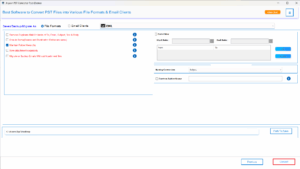
The MacGater PST Converter Tool provides a safe and easy method to import PST files to IMAP accounts. It will keep the folder structure, attach emails with attachments, contacts, and calendars, and is capable of supporting large PSTs or bulk migration. This software has no requirement for Outlook installation and is a zero-data-loss process. The user may preview emails or use filters for selective migration. This utility will support all IMAP-supported platforms, such as Gmail and Yahoo, ultimately making the PST to IMAP migration process simple and reliable. Along with many email clients, you can directly convert PST to EML.
Simple Steps to Import PST File to IMAP Account:
- First, install the PST to EML Converter on your system.
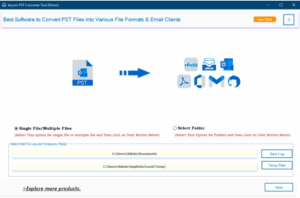
- Next, choose Single File or Folder mode to add your PST files.
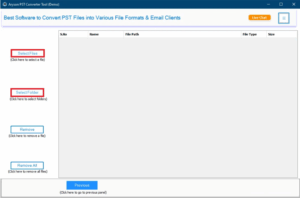
- After that, cross-check everything before conversion by clicking on preview.
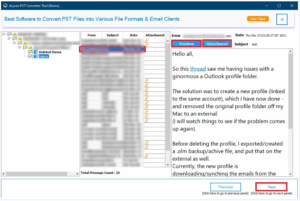
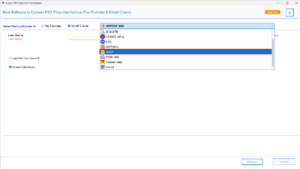
- Then, select IMAP as your format from the Email Client.
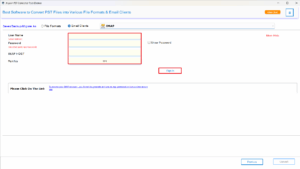
- Simply enter your credentials, which are mentioned.
- Apply filters to refine your results for specific emails.
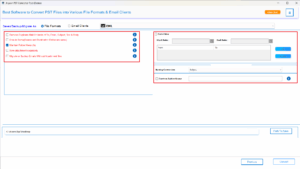
- Finally, click on convert to convert the PST File to EML File.
Conclusion
Moving mailbox files to IMAP destinations from Outlook can be challenging, although using an efficient solution simplifies it with confidence and security. MacGater PST Converter Tool will facilitate a safe and complete move without worry of data loss, it will also retain email message integrity, folder hierarchy, and attachments, all without technical guidance. Hem the turbulence of importing PST to IMAP – your emails will simply be there for the user to access at their discretion. More importantly, it is a fast, reliable, and secure solution for you to transfer mailbox file data.
Frequently Asked Questions
Q.1 What is the easiest way to import a PST file to an IMAP account?
Ans. The easiest way is by using the MacGater PST Converter Tool. It directly imports PST files into IMAP mailboxes without Outlook.
Q.2 Does IMAP use PST files?
Ans. No. IMAP stores data on the server, while PST files store data locally on your computer.
Q.3 Does importing PST to IMAP preserve attachments and folder structure?
Ans. Yes. The MacGater tool keeps attachments, folders, and formatting intact during migration.
Q.4 Can I import a large PST file to the IMAP mailbox?
Ans. Yes. The MacGater PST Converter Tool supports bulk and large PST files.
Follow the easy steps:
1. First, install the PST to EML Converter on your system.
2. Next, choose Single File or Folder mode to add your PST files.
3. Cross-check everything before conversion by clicking on preview.
4. Then, select IMAP as your format from the email Client.
5. Simply enter your credentials, which are mentioned.
6. Finally, click on convert to convert the PST File to an EML File.
Q.5 How do I import PST to IMAP in Outlook?
Ans. You can connect your IMAP account in Outlook and manually move PST data, but the automated tool offers a faster and safer alternative.
About The Author:

Abhilash Dogra is a dedicated IT professional with more than 3 years of experience and has been a key member of Aryson Technology for the past 5 years. His expertise includes email migration and data recovery, with a strong focus on technologies such as MS Outlook and Office 365. In addition to this, Abhilash explores front-end technology and software development. He holds a Bachelor's degree in Computer Technology.