-
Written By Suman Rawat
-
Updated on July 17th, 2025
Best Way to Import MBOX to Yahoo Mail Without Data Loss
Summary: If you use Thunderbird, Apple Mail, or other MBOX-compatible email clients, you’re likely familiar with MBOX files, which are used to store mailbox data locally. However, with growing concerns over data security and the need for remote accessibility, many users prefer to import MBOX to Yahoo Mail. Yahoo stores data on a secure cloud server, which also helps reduce local storage usage. This guide explores different ways to import MBOX files into Yahoo Mail. It also introduces a reliable MBOX Converter Tool that simplifies and streamlines the process, ensuring a smooth and efficient migration without data loss.
Need to Transfer MBOX File to Yahoo Mail
Here are some common reasons to transfer MBOX files to Yahoo Mail, explained in simple and user-focused terms:
- Yahoo Mail operates on a cloud server, letting you access your mailbox from anywhere.
- You can manage your mailbox more efficiently by using the Yahoo Mail application.
- It protects your data by adding an extra layer of backup in a secure environment.
- Yahoo Mail saves your mailbox on a cloud server, freeing up your local storage.
- It supports cross-platform and supports your mailbox on every operating system.
- If you’re looking for a simple way to forward emails, Yahoo Mail offers a user-friendly and efficient solution.
Manual Method to Import MBOX to Yahoo Mail
Currently, Thunderbird does not offer a built-in option to directly import MBOX files. However, if you want to import your desired MBOX file into your Yahoo Mail account, follow this step-by-step guide as needed.
- Begin by downloading and installing the Mozilla Thunderbird email client on your computer.
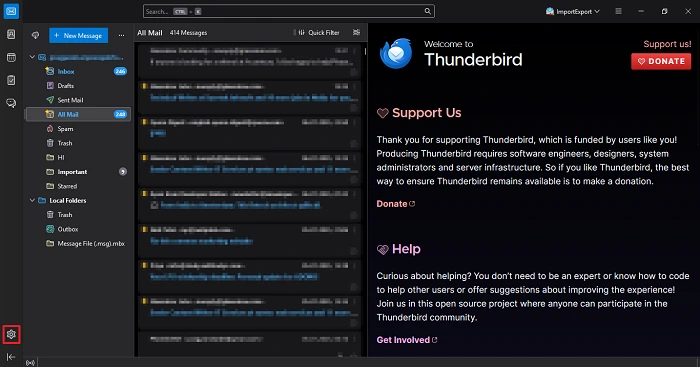
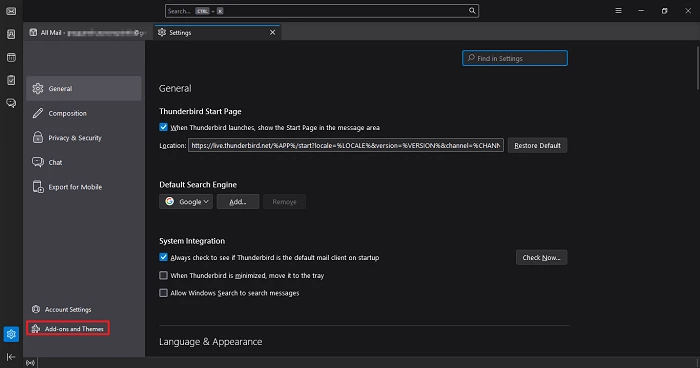
- After that, go to the gear icon and click on it to open the settings option.
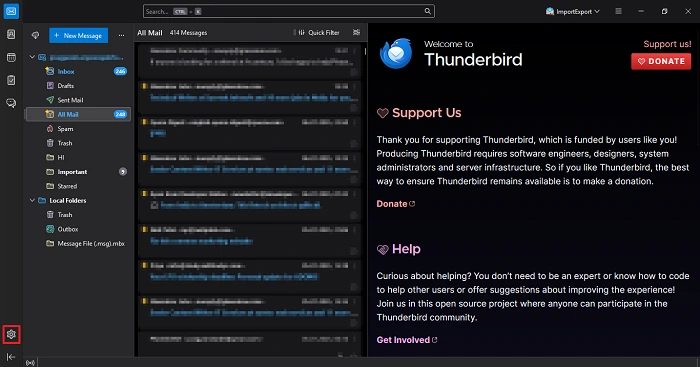
- From the Settings menu, select the Add-ons and Themes option to proceed.
- Under the Add-on, search for the ImportExportTool NG.
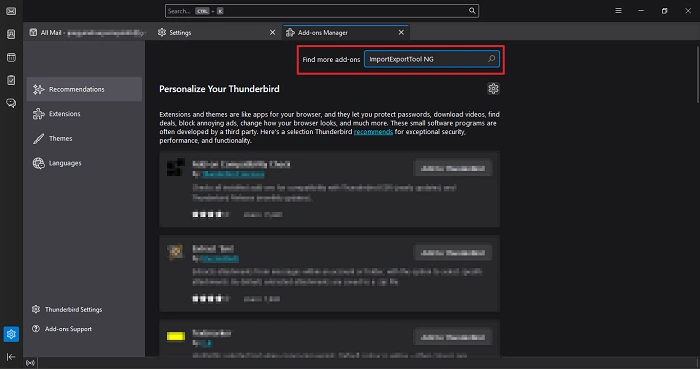
- After that, follow the installation instructions to download the add-ons on your system.
- Next, navigate to the Local Folders section and create a new folder to store your imported data.
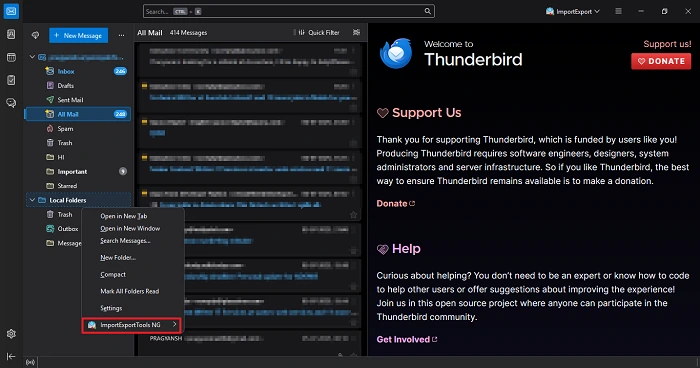
- Under the folder label, right-click on it and choose the ImportExportTool NG option.
- Next, click on Import mbox file and select Individual mbox format.
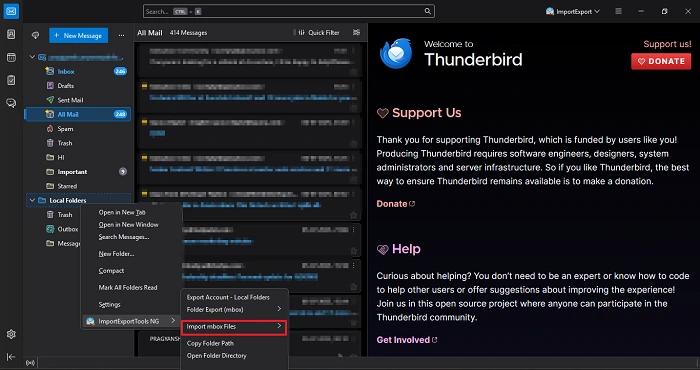
- Wait while Thunderbird syncs the imported MBOX data.
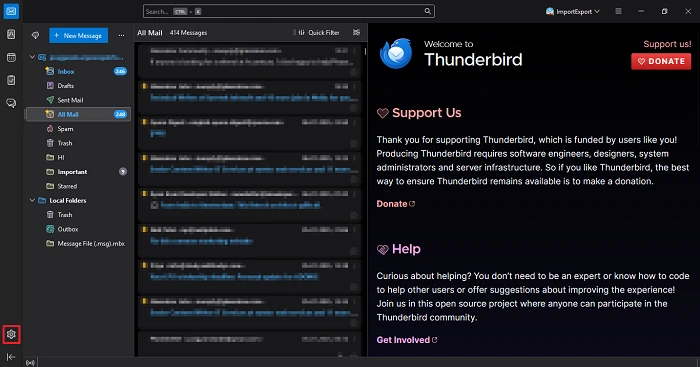
- After that, click on the gear icon and go to Settings.
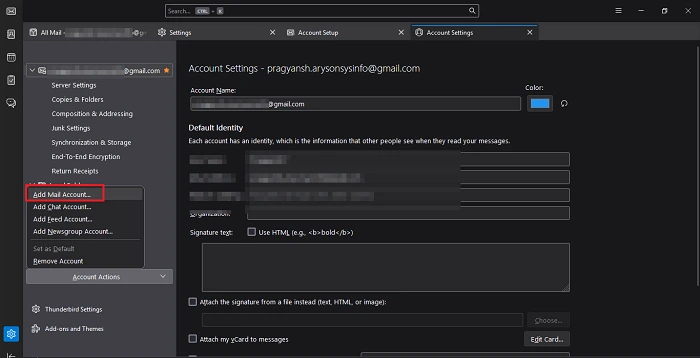
- From there, navigate to Account Settings > Account Actions > Add Mail Account.
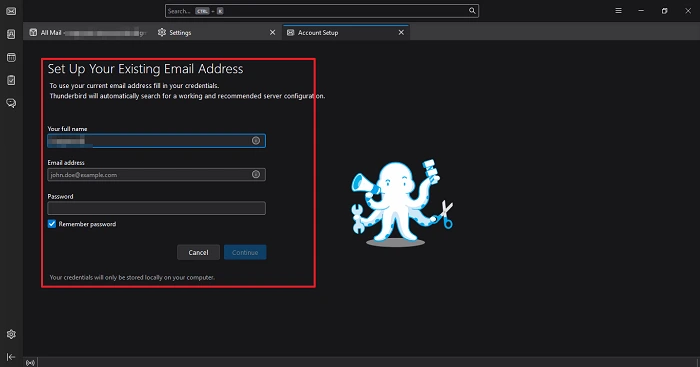
- Next, enter your Yahoo Mail login credentials to authenticate and set up your Yahoo Mail in Thunderbird.
- Once configured, locate the imported MBOX file under Local Folders.
- Drag and drop all the MBOX files into the Yahoo Mail account to upload MBOX file to Yahoo Mail.
- In the end, make sure all your data is stored and intact.
Professional Method to Import MBOX to Yahoo Mail
To directly and efficiently import your MBOX file into Yahoo Mail, utilize the advanced MBOX Converter Tool for a seamless experience. It provides you with a direct conversion feature despite the size and length of the MBOX file. Apart from that, it can also import MBOX to Outlook, AOL, Gmail, G Suite, and many other prominent email clients. By applying this software, you can take advantage of the advanced features of the application. Moreover, it was developed by using the latest and most innovative algorithm that imports your desired MVBOX file into any of the resultant outputs.
Steps to Convert MBOX to Yahoo Mail
- First, download and install the MBOX Converter Tool on your computer.
- Then, select either the Select File or Select Folder option based on your requirement.
- After that, browse your system and choose the MBOX file you wish to upload.
- Once selected, you can preview the mailbox content and pick specific folders as needed.
- From the available export options, select Yahoo Mail as your destination.
- After that, enter your Yahoo Mail login credentials to authorize access.
- Apply any filters or advanced settings if required for a more customized import.
- Finally, hit the Convert button to start the process and ensure the data is safely transferred.
Conclusion
In a nutshell, by reading the entire blog carefully and attentively, you will know how to import MBOX to Yahoo Mail. For the import of MBOX files, you choose various methods as needed. However, the professional method is easy to use and provides a smooth, convenient experience.
Frequently Asked Questions
Q.1 Are there any size limits when importing MBOX to Yahoo Mail?
Ans. By applying the manual method, there is a size limitation challenge you may face. However, utilizing the professionally recommended tool can bypass all the size restrictions and provide a smooth experience.
Q.2 Is it safe to use third-party tools to import MBOX to Yahoo Mail?
Ans. Yes, why not? The professional tool is professionally recommended by various specialists. Also, it is equipped with the latest and most innovative algorithm that saves your data smartly and maintains data integrity.
Q.3 Can I import MBOX files to Yahoo Mail without using Thunderbird?
Ans. If you want to move MBOX emails to Yahoo Mail account without the need for the Mozilla Thunderbird application, utilize the professional tool. It bypasses the need for the manual or any extra application.
About The Author:

Suman Rawat is a technical content writer and expert in the fields of email migration, data recovery, and email backup. Her passion for helping people has led her to resolve many user queries related to data conversion and cloud backup.