-
Written By Suman Rawat
-
Updated on July 19th, 2025
How to Import MBOX to AOL Mail Easily
Summary: MBOX files are supported by various email clients, making them useful for email communication. It preserves all your data in an organized and structured format for easy access and management. However, due to security and backup purposes, users want cloud server-based email clients. To fulfill this condition, AOL Mail is the best email client. This blog describes the best ways to import MBOX to AOL Mail. Also, we introduce the professional MBOX Converter Tool to accomplish this import process smoothly.
Reasons to Import MBOX Emails to AOL Mail
Several reasons are associated with the import of the MBOX file into AOL Mail.
- Conversion of the MBOX file consolidates all your accounts into a single platform.
- AOL Mail stores all the mail on cloud storage, offering safer and more accessible backup.
- Due to its cloud server accessibility, you can access your data from anywhere and at any time.
- AOL Mail provides ample storage and keeps your mail safe for the long term.
- The mail interface allows for easy search and filtering options.
Manual Method to Import MBOX to AOL Mail
There are multiple ways to import your MBOX file into your AOL Mail account, depending on your preferences and needs. Follow the steps given below to import your MBOX data without any downtime.
- Start by downloading and installing Mozilla Thunderbird on your system from the official website.

- Launch Thunderbird and select the gear icon to open the Settings menu.

- Next, click the dropdown menu and choose Add-ons and Themes to access extension settings.
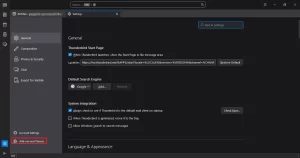
- In the Add-ons search field, enter ImportExportTools NG to begin the search for the extension.

- Then, find the add-on in the search results and follow the on-screen instructions to complete the installation.
- After installation, restart Thunderbird to enable and activate the newly added tool.
- Now, go to Local Folders in the left sidebar. Right-click and select New Folder to create a space for your imported emails.
- Right-click the newly created folder. And choose the ImportExportTools NG option.

- Then, click on Import MBOX file and choose the Individual MBOX file option to proceed with the import.

- Thunderbird will begin syncing and displaying the emails within that folder.
- After that, click the gear icon again and go to Account Settings.

- After that, navigate to Account Settings, choose Account Actions, and click Add Mail Account to start setting up your email.
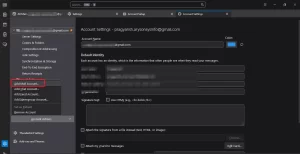
- Then, input your AOL Mail email address and password to set up and connect your account successfully.

- Go back to the Local Folders section and open the folder containing your imported emails.
- Select all messages and drag and drop the selected emails into a folder to upload MBOX emails to AOL Mail account.
- In the end, confirm that the imported emails appear in the appropriate folder and are intact.
Expert Solution to Import MBOX to AOL Mail
The manual method does not support the direct import of an MBOX file into an AOL account. If you want a direct import of an MBOX file into an AOL account, use an expert-recommended MBOX Converter Tool. Moreover, the software also helps to remove duplicate mailboxes during backup or import. With its easy and simple user-friendly interface, it is ideal for all kinds of users, regardless of their knowledge level. Nonetheless, the software can also import MBOX to Yahoo Mail, Gmail, Yandex Mail, and any other email clients.
Steps to Transfer MBOX Files to AOL Webmail
- Install and launch the MBOX Converter Tool on your default system.
- Next, click on the Select File or Select Folder option to locate your MBOX files on the system.
- Next, browse and select the desired MBOX file from your local drive.
- Then, preview the entire mailbox using the tree-view layout and choose the specific items you want to import.
- Next, from the list of email clients, select the AOL Mail option to proceed with the import.
- Apply the relevant and desired filters and functionalities as needed.
- Finally, click the Convert button and verify that all your data has been successfully transferred and remains secure.
Conclusion
Using MBOX emails to import into AOL Mail keeps your information secure and convenient to access anywhere. You can manually do it with Thunderbird or use a trustworthy MBOX converter tool to import MBOX to AOL Mail. The application simplifies the whole process and has bulk import with no data loss. It also maintains attachments and mail structure when transferring. Select the approach that best suits your requirements and keep your emails organized and secure on AOL Mail.
Frequently Asked Questions
Q.1 Can I import MBOX files directly into AOL Mail?
Ans. No, you can not import an MBOX file directly into AOL MailTo import MBOX files directly into AOL Mail, it’s best to use a reliable MBOX Converter Tool. It facilitates you in importing all your MBOX data with ease and efficiency.
Q.2 What is the easiest way to transfer MBOX emails to AOL Mail?
Ans. The professional converter tool offers the simplest way to transfer MBOX emails to AOL Mail. It efficiently handles the conversion of multiple MBOX files in one go.
Q.3 Can I bulk import multiple MBOX files into AOL Mail?
Ans. Yes, you can easily bulk import multiple MBOX files into AOL Mail. This automated process directly imports all your data with ease.
Q.4 Will attachments be preserved when importing MBOX to AOL Mail?
Ans. Yes, attachments are preserved during the import process of MBOX data into AOL Mail. The advanced method ensures that all attachments are successfully preserved during the MBOX data transfer process.
About The Author:

Suman Rawat is a technical content writer and expert in the fields of email migration, data recovery, and email backup. Her passion for helping people has led her to resolve many user queries related to data conversion and cloud backup.