-
Written By Abhilash Dogra
-
Updated on November 25th, 2025
How to Import EML to Google Workspace (G Suite) – Full Guide
User Query: “I just finished migrating our company email from our old desktop-based client (like Thunderbird) over to Google Workspace. I have a whole folder on my computer of important historical emails that I saved as individual .eml files. How do I get all of these old messages out of those files and into my new Gmail inbox so my entire team and I can search and access them?”
– Bejnemin Frnak, IT Administrator.
Summary: Users nowadays are progressively shifting to cloud-based email clients or workspaces. As digitization is at its peak and companies are growing rapidly. Thus, they need enterprise-level features that a cloud-based platform (i.e., Google Workspace) can provide. Therefore, we are as migration experts are often get such queries. So, in this article, we will solve all your queries related to how to import EML to Google Workspace. Such as the basic reasons to move and the most optimal solution to import, including the expert-recommended MacGater EML Converter.
Why Import EML Files into Google Workspace?
This section will cover why and when a user or a business must import EML files into G Suite. Let’s start with knowing all the major reasons:
- Centralized Access and Cloud Mobility: To become more universal, because EML files are locally stored only and can not be accessed from different devices. Additionally, Gmail’s advanced search makes it far simpler to locate emails compared to browsing through individual EML files.
- Ease of Collaboration and Sharing: With Google Workspace, you can easily collaborate with colleagues and teams.
- Data Security and Compliance: Google Workspace ensures stronger protection for your emails than storing them on a local computer. It also makes it easier to meet compliance needs by offering centralized admin controls for archiving, monitoring, and eDiscovery.
- Data Preservation and Migration: During mergers or when employees move between roles, it becomes necessary to bring all old emails into Google Workspace to maintain smooth business operations. This way, critical information is securely preserved within G Suite.
These could be the top 04 reasons to upload EML files to Google Workspace. Next, we’ll check the procedures that make this import possible.
Methods to Import EML to Google Workspace
As Google Workspace is widely used by multiple firms. If you’ve made up your mind to transfer all your data from EML to Google Workspace, let’s explore the methods that will help you carry out the import smoothly.
Manual Method: Drag-and-Drop via Outlook & Gmail
This method uses Microsoft Outlook to convert the EML files into a format Gmail can easily read. After that, drag them into your mailbox.
Prerequisites to perform this method:
- Microsoft Outlook is installed on your computer.
- Either set up Outlook using Google Workspace Sync or configure it through IMAP.
- The EML files are kept in a specific folder on your system.
Manual Steps to Import EML to Google Workspace
- After saving EML locally, create a new folder in the configured Google Workspace.
- Then, locate EML files from the local device.
- Now, drag and drop them directly into the desired Outlook folder.
- After that, Configure Gmail IMAP in Outlook.
- Drag emails to the Gmail IMAP folder.
- At last, sync and verify in Gmail to open EML files in Google Workspace.
The import process of EML files is completed. To check that Import EML to G Suite is done, users can verify them in their Gmail account.
Points to Consider: Although this technique is free but it is very labour-intensive. Alongside, this method can be very slow for larger quantities. Moreover, users can lose the original date during the import. Plus, it can be very hectic for non-tech users, as well as it is an error-prone method to upload EML files to Google Workspace.
But we have the solution, the next method is error-free and easy for every user. Let’s dive in.
Automated Solution: Best Available EML to G Suite Import Software
The robust MacGater EML Converter is the professional recommended solution for error-free transfer of EML files to Google Workspace. This user-oriented software supports batch Conversion so that users can move all the data easily. In addition to Google Workspace, you can also import EML into Thunderbird and various other email clients.
Error-Free Steps to Import EML to Google Workspace
- First of all, install the MacGater EML Converter on the device.
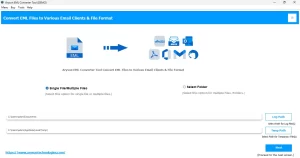
- Afterwards, select EML file(s)/folders on the display and Press Next.
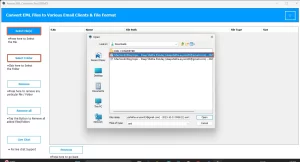 .
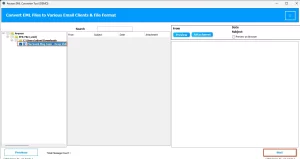
. - Then, navigate to the preview panel, choose the desired files & click the Next button.
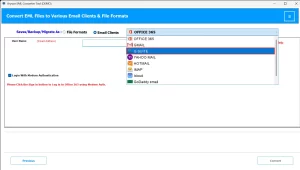
- From the drop-down option, choose “G Suite”.
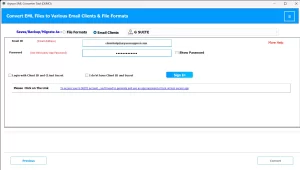
- After that, Authenticated the Login Process.
- Now, apply any required filter.
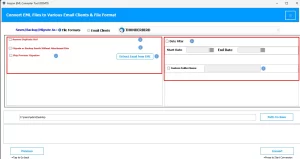
- In the end, press Convert to import EML to Google Workspace.
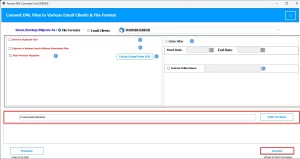
Note: Using these straightforward steps, users can quickly and easily transfer their EML files to Google Workspace. Alongside this, with this ultimate EML converter, users can also save their EML files to Multiple file formats too.
Conclusion
With this ultimate guide, we have learned how we can import EML to Google Workspace. All the doubts, such as when, why, and how a user must import their PST files. Alongside the reasons, we have learned the methods to import the files. Such as the EML converter that helps used to organize all the data in the desired format.
Frequently Asked Questions
Q.1 How do I import EML files into Google Workspace (G Suite)?
Ans. You can import EML files into Google Workspace (G Suite) with the most reliable MacGator EML converter by following the simple steps:
1. First, install the MacGater EML Converter on your device.
2. Then, select the EML file(s) or folders and click Next.
3. Add the desired EML files.
4. In the preview panel, pick the files and press Next.
5. From the dropdown menu, choose “G Suite”.
6. After that, complete the login authentication.
7. Apply any filters if needed.
8. Finally, click Convert to import EML files into G Suite.
Q.2 Can I upload multiple EML files to Google Workspace at once?
Ans. Yes, you can transfer EML files to Google Workspace in bulk at once with the expert-recommended MacGator EML converter. As it provides a batch conversion feature alongside the provide option.
Q.3 Can I migrate EML files to Gmail without using any tools?
Ans. Yes, using manual methods, you can easily migrate EML files to Gmail, but if time consumption is your preference, u must go for the professional tools.
Q.4 Can I open EML files directly in Google Workspace?
Ans. Absolutely, you can easily open EML files directly in Google Workspace with Macgator EML converter. Moreover, you can also save them in multiple file formats with ease.
About The Author:

Abhilash Dogra is a dedicated IT professional with more than 3 years of experience and has been a key member of Aryson Technology for the past 5 years. His expertise includes email migration and data recovery, with a strong focus on technologies such as MS Outlook and Office 365. In addition to this, Abhilash explores front-end technology and software development. He holds a Bachelor's degree in Computer Technology.