-
Written By Abhilash Dogra
-
Updated on November 25th, 2025
Import EML to Gmail – Quick Methods (No Outlook Needed)
User Query: “I’ve got hundreds of old EML files from my work archives, and I need them in Gmail. I tried doing it manually through an email client, but it’s taking forever, and some of my emails are losing attachments in the process. Is there a faster, safer way to import EML to Gmail without spending days and risking missing data?”
Overview: Recently, a reader from Manchester inquired about the above query, seeking a faster and safer method to upload his EML Files to Gmail in bulk with just a few clicks. Do you also find yourself thinking of a solution for the above situation? If so, there’s no need to worry. This blog will provide you with the best and optimized solution, including MacGater EML Converter to import EML to Gmail. Additionally, you will find some simple ways to import, along with the steps to follow. You just go through the entire blog, and all your queries will get answered.
Instances Where Users Import EML Files to Gmail
There are some scenarios based on the user’s needs and preferences where they need to import EML Files into Gmail. Some of them are listed below:
Scenario 1: If you want to centralize all your emails in one place for better organization and faster searching, rather than searching for a single one for a long period.
Scenario 2: In case you want to consolidate multiple email accounts in Gmail for better organization and access to all emails, and are not able to do the same through EML-based email clients.
Scenario 3: When your goal is to easily share and collaborate, and EML-based clients are not serving you well with the same.
Scenario 4: In case you are looking for the enhanced security and backup features that Gmail offers.
Scenario 5: For someone looking forward to getting access to the advanced features of Gmail, including Spam protection, integration with other Google services like Google Drive, Docs, and Calendar.
Scenario 6: When you aim to preserve all your valuable EML files related to Forensic or cybercrime investigations.
In case any of the scenarios sound familiar to you, it’s time to start the import process. For that only, we have shared two main approaches with their step-by-step guide.
Approaches to Import EML to Gmail- What Works Best?
There are two approaches to importing EML Files to Gmail. The first approach is manual, whereas the other one is more efficient and reliable. Let’s navigate to all the available methods to accomplish the task.
Approach 1: Fast & Reliable Solution to Import EML Files to Gmail without Outlook
MacGater EML Converter is a more reliable and optimized solution to upload EML Files to Gmail. It will help you to keep all your EML files secured in a single inbox to access your files in an efficient manner next time, and increase your efficiency at work. Also, this solution offers you some additional features, like filters for the email selection. Moreover, it doesn’t require any software requirements as a basic prerequisite, so even a native user can use it. Also, you can use the same solution to convert EML to Word, supporting different file formats, including doc, docx, etc.
Steps to perform the import process are as follows :
How to Import EML to Gmail with Ease:
- At first, install and launch MacGater EML Converter on your PC.
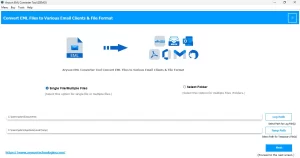
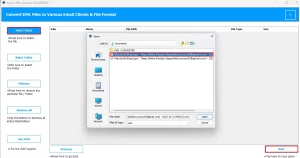
- After clicking on the Select File or Select Folder button, choose the required EML file(s).
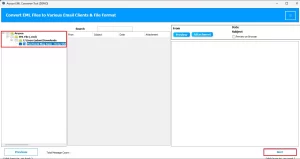
- Now, you will see an Advanced Preview Panel, where your selected file will appear.
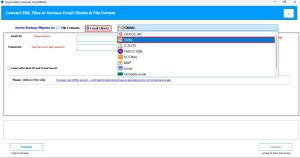
- After that, click on the Email Clients radio button and select Gmail.
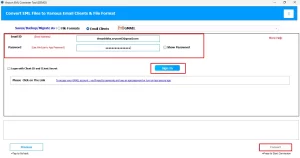
- To proceed further, enter your Email address and password and click on the Sign in button.
- Also, you can apply some additional filters to your email selection according to your preference.
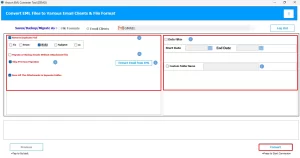
- Finally, hit the Convert button to begin the import.
Note: The approach is suitable for a user who wants to perform the automatic import process on bulky data in the least possible time frame. In case you have fewer EML files and can invest a significant amount of time, you can go for the manual method. Let’s have a look at it also:
Approach 2: Import EML to Gmail Using Thunderbird and Outlook
The manual method consists of two ways in which you can open your files on your Gmail account easily. You have to establish a connection between your Google account to EML-based email clients like Outlook and Thunderbird, and open EML File in Gmail.
Step-by-step instructions are provided to you below:
By using Outlook:
You have to log in to your Outlook account first to import Gmail to Outlook, connecting both accounts. You first configure and then import the EML file to Gmail..
Phase 1: Connecting Outlook and Gmail accounts
- Firstly, open your Outlook account.
- Then, go to the File tab.
- Now, click on the Add Account option.
- Now, enter the email address and password associated with your Gmail account.
- After this, set up your IMAP/POP details.
- Finally, hit the Finish button.
Following the steps above, you would have connected both accounts successfully. Now, let’s move to the second step.
Phase 2: Importing the EML file to Outlook
- Now, find your EML file to import.
- Right-click it and click on the Open with option.
- Then, select the Outlook option from the list of email clients appearing.
- Your EML file has now been imported to your Outlook account successfully.
To upload your EML file, you just have to drag and drop it into your Gmail account.
By Using Thunderbird:
You must download the ImportExportToolsNG add-ons in your Thunderbird profile by simply going to Tools >> Add-ons and Themes >> Search ImportExportTools NG.
Phase 1: Use Thunderbird to Import the EML Files
- Firstly, you have to restart your Thunderbird account.
- Then, proceed by setting up a new folder here.
- Now, right-click on this folder created.
- After that, just select the ImportExportTools NG option.
- Then, tap the Import Message option and select the EML Files option.
- Finally, browse your files and select the Open button.
Phase 2: Build a connection between Gmail and Thunderbird
- First, navigate to the DOC file.
- Now, open the file in Excel.
- Tap on the File tab and click on the Save As option.
However, this method has various drawbacks listed in the drawbacks section below:
Drawbacks of the manual approach
- Users must install email clients and have a decent level of technical knowledge.
- There are chances of data loss and corruption in case of improper execution.
- Essential metadata may not get preserved in the case of the manual method.
- This method doesn’t support bulk import, as we explored in the optimized solution.
- There may arise certain errors and inconsistencies in this method.
Conclusion
The two ways to import EML to Gmail were discussed in the article above. However, the Aryson EML Converter is the best and optimized solution; it’s up to you to pick any one of them as per your preference and expertise. For a user looking for a quick way to import EML files in bulk without requiring any technical knowledge, the tool is a suitable way to choose. Whereas, if you have a decent amount of technical knowledge and fewer EMLs to import, you can go for the manual method.
Frequently Asked Questions
Q.1 Can I open an EML file directly in Gmail?
Ans. Yes, you can open an EML file directly in Gmail with the help of the Aryson EML converter we explored in the above article.
Q.2 Is it possible to batch import multiple EML files into Gmail?
Ans. Yes, it is possible to import multiple EML files into Gmail by using the automated tool we discussed above. Other than the tool, there is no other way to batch import multiple EML files into Gmail.
Q.3 Does importing EML files to Gmail preserve the original formatting and attachments?
Ans. The manual import might not preserve the original formatting and attachments, whereas the automated tool can preserve them efficiently, ensuring no data loss during the import process.
Q.4 How do I enable IMAP in Gmail to import EML files?
Ans. To enable IMAP in Gmail :
1. Firstly, log in to your Gmail account.
2. Now, navigate to Settings and select the See All Settings option.
3. Then, under the Forwarding and POP/IMAP tab, select the IMAP access option.
4. Choose the Auto-Expunge on option.
5. Now, you can import your EML files to Gmail.
About The Author:

Abhilash Dogra is a dedicated IT professional with more than 3 years of experience and has been a key member of Aryson Technology for the past 5 years. His expertise includes email migration and data recovery, with a strong focus on technologies such as MS Outlook and Office 365. In addition to this, Abhilash explores front-end technology and software development. He holds a Bachelor's degree in Computer Technology.