-
Written By Suman Rawat
-
Updated on July 17th, 2025
How to Convert MBOX to DOC: Fastest Method That Actually Work
Summary: Many business users want to convert MBOX to DOC format for better readability and easier sharing among team members. DOC files are user-friendly and widely supported, making them suitable for both technical and non-technical users. They offer flexibility for editing and presenting information clearly and professionally. To simplify the conversion process, this blog outlines a verified method using a specialized MBOX Converter Tool. The tool enables smooth and efficient conversion of MBOX emails to DOC without data loss.
Why You Need to Export MBOX to DOC?
There are several justifications available to export your MBOX file format to DOC format. Some of them are mentioned below:
- The formats are easier to read, analyze, and present, making them easy to understand.
- In a DOC file, you can easily make edits and modify the content as needed.
- Converting your MBOX file to DOC format allows you to conveniently access the content from any location with ease.
- The user converts the MBOX file into a DOC for backup and compliance processes.
Manual Method to Convert MBOX to DOC
There is no manual method available that directly converts your desired MBOX into a DOC file format. If you want to manually convert an MBOX file, you need another email client that provides a bridge to convert your MBOX file into DOC format. Use the steps outlined below to manually and efficiently convert your MBOX files to DOC format.
- Download and install the Mozilla Thunderbird application on your system.
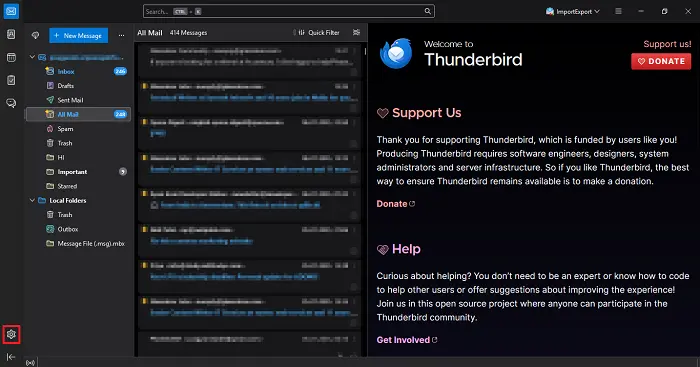
- Next, click on the gear icon to access the settings menu.
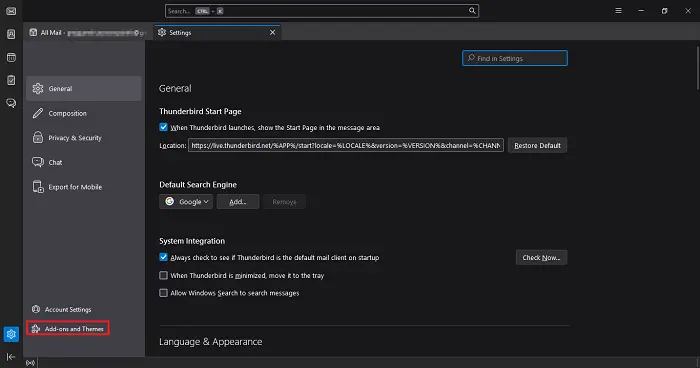
- Under the settings option, choose an option of add-ons and theme options.
- Under the add-ons and theme option, search for the ImportExportTool NG option.
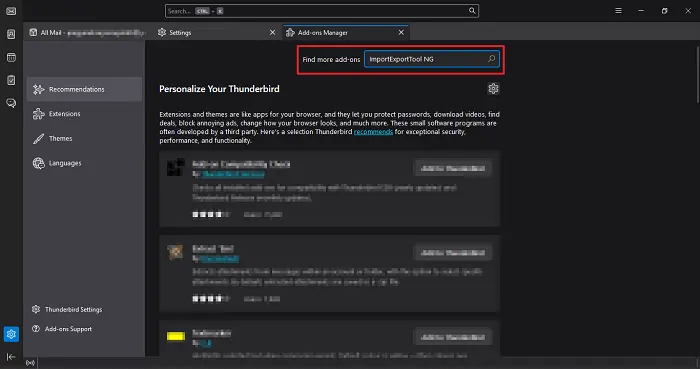
- Follow the on-screen instructions to install this add-on on your application.
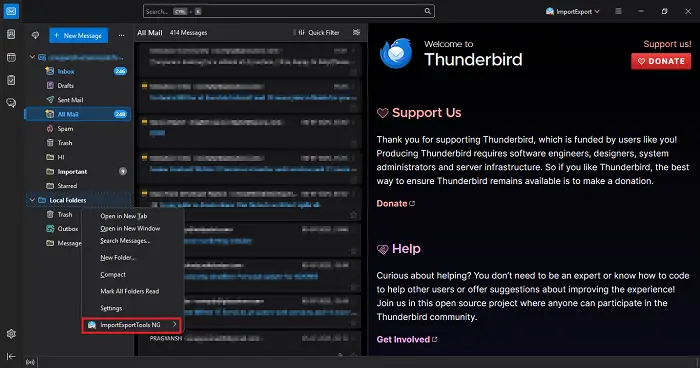
- Then, navigate to the Local Folders section and right-click on it to open the context menu options.
- Here, choose the ImportExportTool NG option and select Import mbox File.
- Under the Import mbox File, choose an adoption of the Individual mbox File.
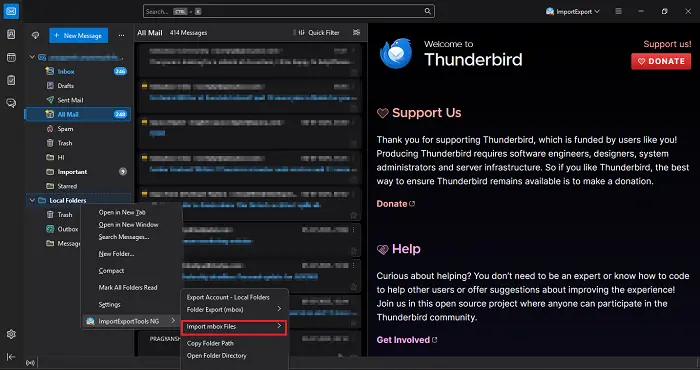
- Now, locate and choose the required MBOX file within the application interface for further processing.
- After that, right-click on it and choose Export Message As, and choose EML Message Format.
- Browse and save the EML file to the desired location.
- After opening the EML file in Microsoft Outlook, navigate to the File menu and click on the Info tab.
- Next, select the Save As option from the list. Choose the desired location and select Word Document (.doc) as the output format.
- Finally, click Save to export the email content into a DOC file.
- In the end, make sure all your data is intact and data integrity is maintained.
Professional Solution to Convert MBOX to DOC
The MBOX Converter Tool offers a dependable and efficient way to convert mailbox data into DOC format with precision and simplicity. It offers a user-friendly interface that allows users to open and convert MBOX files without complications or delays. Moreover, the tool supports both single and multiple file conversions while preserving the original folder structure during the process. Moreover, the tool is equipped with the latest and most innovative algorithm that can import MBOX to iCloud, Yahoo Mail, Mozilla Thunderbird, and many more email clients. Users can apply filters to locate specific emails based on addresses or keywords. Additionally, it offers a preview option to view emails before converting them. Nonetheless, dedicated technical support is available to resolve any user queries throughout the conversion process for a smooth experience.
Steps to Convert MBOX to Word
- Begin by downloading the MBOX Converter Tool.
- Once downloaded, run the installer and follow the on-screen instructions to complete the installation.
- Open the tool on your system. You’ll be presented with two options:
- Select File: Use this if you have a single MBOX file.
- Select Folder: Choose this if you want to convert multiple MBOX files stored in one folder.
- After that, browse your system and upload the appropriate file(s).
- You can preview the entire email body and select the specific emails or folders you want to convert.
- From the available export formats, select DOC as your desired output format.
- Click the Browse button to choose the location on your system where the output DOC files should be saved.
- Once all selections are made, click on the Convert button to initiate the process.
Conclusion
In summary, multiple methods exist to convert MBOX to DOC, including manual and professional approaches. While manual methods are available, they often involve limitations like complexity, time consumption, and risk of data loss. Experts typically recommend using a professional MBOX Converter Tool for safe and accurate results. The tool ensures data integrity and privacy throughout the process. For a seamless experience, it’s best to choose a reliable and user-friendly automated solution.
Frequently Asked Questions
Q.1 Can I convert MBOX to DOC manually without software?
Ans. Yes, you can. However, if you want to manually convert your MBOX file into DOC, you are aware of its limitations. These limitations might affect the experience. For the best results, it is recommended to use a trusted MBOX to DOC Converter for a smooth and secure conversion experience.
Q.2 Is it possible to export MBOX to Word without losing formatting?
Ans. Yes, it is possible to convert MBOX emails to DOC without losing the format. Utilize a reliable MBOX Converter Tool to seamlessly convert MBOX files into multiple formats, including the DOC file type.
About The Author:

Suman Rawat is a technical content writer and expert in the fields of email migration, data recovery, and email backup. Her passion for helping people has led her to resolve many user queries related to data conversion and cloud backup.