-
Written By Abhilash Dogra
-
Updated on February 13th, 2026
Import PST to iCloud: Transfer Outlook Emails Easily
Summary: If you are an Outlook user who wants to switch to iCloud or simply back up your emails, you want to know how to import PST to iCloud easily. As you are aware, PST file contains all your Outlook data, including emails, contacts, calendars, and attachments. On the other hand, iCloud allows users to access emails across Apple devices like Mac, iPhone, and iPad. This complete guide will provide all the simplified solutions along with the MacGator PST Converter to accomplish the import process in a hassle-free manner.
Common Scenario Where you need to Import PST into iCloud
Many users encounter situations where it becomes necessary to transfer Outlook PST files to iCloud. Among them, some of the common scenarios are:
- When users move from a Windows PC with Outlook to a Mac or iPhone, iCloud becomes the central platform to access all emails seamlessly across Apple devices.
- PST files saved on your computer can be accidentally deleted or corrupted. If you move them to iCloud keeps a safe backup that you can access anytime.
- If you have more than one Outlook account, importing PST files to iCloud lets you see all emails in one place.
- Many people and businesses use iCloud because it works well with Apple apps. So, when you import PST data to iCloud, it keeps all your important messages and attachments safe.
Explore the Given Methods to Import PST to iCloud
When you want to move your Outlook emails to iCloud, there are different ways to do it. The manual method is appropriate enough for small PST files and simple transfers. On the other hand, using an automated tool is quite reliable for data accuracy. Although proceed with the next section and accomplish the import process with each method one by one separately:
Method 01: Manual Way to Import PST Files to Apple Mail
If you have awareness of the technical terms of Apple Mail and Outlook, then you can proceed with the manual methods. This method is simple and works well for smaller email files or basic migrations. Go through the given steps to move PST Emails to iCloud:
- To begin with, open Apple Mail on your Mac OS.
- Next, add your previous email account by going to Mail >> Add Account.
- Then, select your email provider and sign in using your account credentials.
- After that, make sure your iCloud account is also added to Mail.
- When it completes, locate the folder you want to transfer in the left sidebar.
- Afterwards, select the PST emails that you want to import into your iCloud account.
- Finally, drag them into your iCloud Inbox or any custom folder under iCloud.
When you follow these steps, all your selected emails and folders will be available in iCloud. So that all your PST data can be accessible across your Mac, iPhone, and iPad.
<h4class=”main_heading” >Drawbacks of Using the Manual Solution
Although the manual method is free to import PST to iCloud, it has certain drawbacks. As a result, it makes the process slow and quite complex for non-technical users. Here are some of the main points to keep in mind when you use the manual process:
- When you move the large PST file with this approach, it can take a lot of time and effort.
- There is a chance that some emails or attachments may not be migrated properly.
- Users need to carefully follow each step. A single mistake can lead to incomplete migration.
- If you transfer several PST files manually, it can be quite inefficient at a time.
- Syncing emails to iCloud requires a stable internet connection; interruptions can cause delays.
Because of these limitations, experts generally recommend using the automated solution to import Outlook PST to Apple Mail. Next, we will introduce the best recommendation among automated solutions.
Method 02: Best Alternative to Import PST File to iCloud Directly
The MacGator PST Converter is a comprehensive and user-friendly automated solution. It helps Mac users flawlessly import their Outlook PST files into iCloud with complete data accuracy. Also, it can convert PST file to EMLX, MBOX, PDF, MSG, and TXT formats. Users can perform the selective import process with the help of the advanced filters of the software. Along with that, it preserves the email properties, attachments, and folder hierarchy. Also, there is an option to import single or multiple PST files according to the user’s preference. Additionally, this utility is quite compatible with all versions of macOS, including the latest macOS Ventura and earlier versions.
Follow these Simple Steps to Import PST to iCloud Account
- Download the MacGator PST Converter on your Mac system and install it.
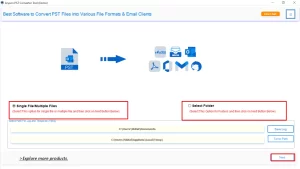
- Browse your system to select the PST files you want to import into iCloud.
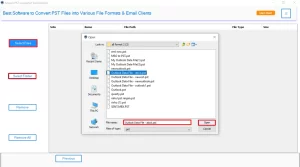
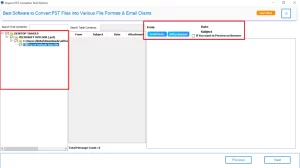
- You can preview all your emails, attachments, contacts, and other mailboxes.
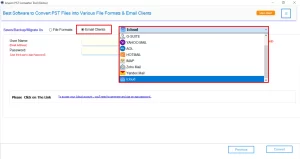
- Choose iCloud as the saving option from the list of available email clients.
- Now, provide your valid iCloud credentials to connect your account securely.
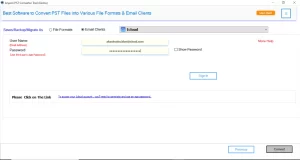
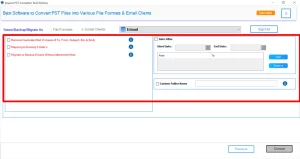
- Along with that, you can use advanced filters to import only the required data.
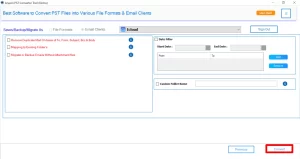
- At last, click on the Convert button to import Outlook PST to Apple Mail.
Conclusion
If you import PST to iCloud, it becomes smooth and secure when you choose an automated solution. Manual methods may work, but they often involve complex steps and risk of data loss. Tools like the MacGator PST Converter simplify the entire process by allowing you to directly move emails, attachments, contacts, and calendars from Outlook to your iCloud account in just a few clicks.
Frequently Asked Questions
Q.1 Can I import Outlook PST to Apple Mail on Mac?
Ans. Yes, you can easily import PST files to Apple Mail using MacGator PST Converter. It can directly transfer your Outlook emails, attachments, and folders to your iCloud account without any data loss, saving you time and effort.
Q.2 Can I sync Outlook emails with iCloud without importing PST?
Ans. MacGator PST Converter helps you sync both old and new Outlook emails with iCloud. Unlike manual syncing, it moves complete mailbox data, including attachments, calendars, and contacts, ensuring nothing is left behind.
Q.3 Do I need Outlook installed to access PST files?
Ans. No, you don’t need Outlook installed when using MacGator PST Converter Tool. This software can read PST files independently and transfer the data directly to your iCloud account without requiring Outlook.
Q.4 How to transfer from Outlook to iCloud?
Ans. The easiest way to transfer Outlook emails to iCloud is with MacGator PST Converter. You just need to add your PST files, log in to your iCloud account, and start the migration. The tool automatically moves all emails and attachments securely in a few clicks.
Q.5 What format does Apple Mail support for importing emails?
Ans. Apple Mail supports the MBOX format, but MacGator PST Converter eliminates the need for format conversion. It directly imports PST data into your iCloud account, making the process much simpler and faster.
About The Author:

Abhilash Dogra is a dedicated IT professional with more than 3 years of experience and has been a key member of Aryson Technology for the past 5 years. His expertise includes email migration and data recovery, with a strong focus on technologies such as MS Outlook and Office 365. In addition to this, Abhilash explores front-end technology and software development. He holds a Bachelor's degree in Computer Technology.