-
Written By Abhilash Dogra
-
Updated on February 13th, 2026
Import PST to AOL Mail – Outlook PST Migration Guide
Summary: In 2026, managing multiple email accounts can be difficult, especially when switching between different platforms. Now, if you are an Outlook user and want to import PST to AOL Mail, walk through the process step by step. Also, if you are thinking of transferring emails for personal or professional use, this guide is helpful. To save your file folder structure, use the MacGater PST Converter Tool.
Importance of PST to AOL Mail Migration
In addition, Outlook stores emails, contacts, calendars, and other data in PST (Personal Storage Table) files. Further, if you are shifting to AOL Mail, importing your PST ensures that all your emails are accessible on your new account. Some of the common factors for migration are as follows:
- Additionally, it accesses Outlook emails on AOL Mail from anywhere.
- Further, it eliminates dependency on Microsoft Outlook.
- Also, it improves email accessibility across multiple devices.
- Moreover, it securely preserves emails, attachments, and folders.
- Apart from that, it is used to simplify email management with cloud-based access.
Prerequisites Before Importing Your PST Files
- Firstly, make sure your AOL account is active and accessible via the web.
- Additionally, you need Outlook on your computer to access the .pst files.
- Likewise, it requires an internet connection for syncing your emails with AOL Webmail.
- Locate the PST files you want to import, which typically have a .pst extension.
Method to Upload PST Files to AOL Mail
When you switch between email platforms and accounts, transferring your data safely is essential. Here, we will discuss the two methods that help you transfer emails from Outlook PST to AOL Mail.
Method 1: Upload PST files to AOL Webmail Manually
Using Outlook, you can directly import your PST files to AOL Mail. Follow the steps:
- To initiate the process, open Outlook on your system.
- Then, go to File from the menu bar and click on Add Account, then enter your AOL email credentials.
- Set up AOL using IMAP to ensure all emails sync correctly.
- Now, open the Outlook application on your system.
- Further, navigate to File and then Open & Export, and now click on Import/Export.
- Now, click on Export to a File and then select Outlook Data File (.pst).
- After that, browse the PST file you want to import and click OK.
- Next, the PST file will appear on your Outlook panel.
- Moreover, drag and drop the folder to the AOL account.
- Then, after the PST is imported, Outlook will automatically sync the emails to your AOL account via IMAP.
- Finally, check AOL Webmail to ensure all emails have appeared successfully.
Limitations of Manual Importation
- It is tricky for non-tech users.
- Additionally, it does not support bulk conversion.
- Due to multiple steps, it consumes a lot of time.
Method 02: Reliable Solution to Open PST File in AOL Mail
To overcome the manual method, use a reliable MacGater PST Converter Tool. This tool is made with advanced features that help users remove previously migrated data. Using the date filter option, you can get a specific period range of data. It supports bulk conversion of data and helps individuals and organisations with large files. It import PST File to Hotmail and other email clients and file formats. Follow more for the migration process steps:
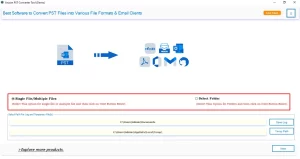
- Download and launch the MacGater PST Migration Tool and select Single file/ folder or select a folder.
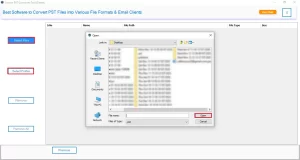
- Now, select File/Folder and browse for the .pst file, and then click on Open.
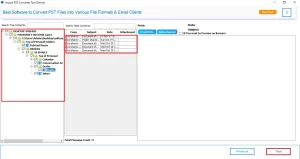
- Further, you can see the tree structure where all the mailbox data is loaded, preview it, and click Next.
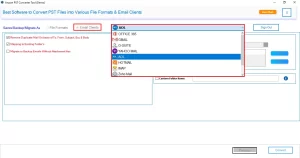
- Then, press the email client and select AOL from the drop-down menu.
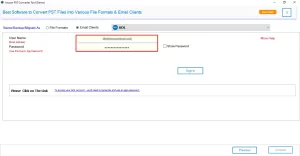
- Next, enter the AOL credentials, such as Email and App Password.
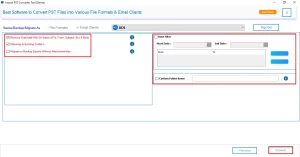
- After that, apply the advanced features for selective data importation and click Convert.
Basic Comparison of Manual & Professional Method
|
|
Manual Method |
Professional Method |
|
Pros |
It is a simple method and uses only Outlook. |
It does not require Outlook and preserves email structure and attachments. |
|
Cons |
It is required to install Outlook on your system and configure it. |
You have to purchase the licensed version for bulk migration. The demo version migrates 50 emails per folder. |
Pro Tips for a Successful PST to AOL Migration
Follow the tips given below for a smooth migration:
- Always use a stable internet connection to avoid any interruptions.
- Further, keep a backup of your PST files before the migration for future needs.
- Make sure that IMAP is enabled in your AOL Mail for easy synchronization.
Final Conclusion
To sum up, importing your PST files to AOL is the only way to access data in plain/HTML format. You can choose any of the methods to import PST to AOL Mail. In case you have large PST files, it is recommended to choose a professional tool, as the manual method does not support bulk conversion. That helps you to preview your mailbox data before the actual migration starts. Apart from that, the demo version of this software helps you to understand the working process.
Frequently Asked Questions
Q.1 Can I upload PST files to AOL Webmail without Outlook?
Ans. Yes, the MacGater PST Converter Tool lets you migrate PST files to AOL Mail without installing Outlook.
Q.2 What data can be transferred from PST to AOL Mail?
Ans. Emails, attachments, folders, and all related metadata are migrated.
Q.3 What is the best way to migrate PST to AOL Mail?
Ans. The safest and easiest way is to use the MacGater PST Converter Tool for direct migration.
Q.4 Will deleted emails from PST be imported to AOL Mail?
Ans. Using the MacGater PST Migration Tool, only emails currently available in the PST file will be imported; permanently deleted emails are excluded.
About The Author:

Abhilash Dogra is a dedicated IT professional with more than 3 years of experience and has been a key member of Aryson Technology for the past 5 years. His expertise includes email migration and data recovery, with a strong focus on technologies such as MS Outlook and Office 365. In addition to this, Abhilash explores front-end technology and software development. He holds a Bachelor's degree in Computer Technology.