-
Written By Abhilash Dogra
-
Updated on February 13th, 2026
Import PST File to Hotmail – Complete User Guide
Summary: If you are still saving your important emails in Outlook as a PST file and facing problems accessing them online, don’t worry. This blog is here to help you. We will explain easy methods to import a PST file into your Hotmail account step by step. These methods help you move your emails safely so you can open them anytime, from anywhere. For fast and smooth transfer of an import PST File to Hotmail while keeping emails original, you can also use a reliable MacGater PST Converter tool.
Why Import PST File to Hotmail
The reasons are discussed in points to better understand the importance to import emails from PST file to Hotmail Mailbox.
- You can view your emails anytime from any device with the help of the internet.
- Move Outlook data from the local computer system to a secure online location.
- It prevents data loss, which may occur due to a system crash or hardware failure.
- You can access emails without installing Outlook on your device.
- It will enhance the security to protect from spam and email encryption.
How Hotmail is different from PST
PST (Personnel Storage Table)
- It is used by Outlook to store users’ data, such as emails, calendars, contacts, etc.
- If these files are too large, then they may face corruption.
- You can access these files offline as well.
Hotmail
- It is a free email service offered by Microsoft.
- This one is accessible in both a web browser and a mobile app.
- Outlook.com, formerly known as Hotmail, can be accessed via an email client using IMAP or POP protocol.
Now, as you understand the importance of the Hotmail Mailbox. Further, we will proceed with the methods to Open Outlook PST file in Hotmail.
Top 2 Methods to Import PST File to Hotmail
In this section, we will discuss the methods by which you can transfer the PST data to Hotmail. You can go through the methods and decide which one is suitable for you.
Method 01 – Manual Method to Import PST File into Hotmail Using Outlook
- First, open Microsoft Outlook on your system.
- Next, add your Hotmail account by going to File >> Add Account and signing in with your Hotmail credentials.
- After that, ensure IMAP is enabled so Outlook can sync data with Hotmail.
- Then, go to File >> Open & Export >> Import/Export.
- Now, select Import from another file or program and hit the Next button.
- Afterward, choose the Outlook Data File (.pst) and click on the Next button.
- Next, browse the PST file and select to import.
- Then, pick the required folders and import them into your Hotmail account.
- Finally, wait until Outlook syncs and uploads emails to Hotmail successfully.
Drawbacks of Using this Method
- This method needs good technical knowledge.
- It increases the risk of sync failure.
- Furthermore, not support bulk conversion.
- Outlook crashes with large PST files and slows down the speed.
- It contains several steps, and hence it is time-consuming.
Method 02 – Professional Way to Transfer PST Data to Hotmail
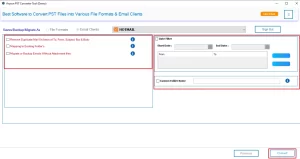
If the above method doesn’t go well with the data you have, then don’t worry. You can use the professional tool that is made to ease your transfer process. The MacGater PST Converter Tool provides various features to get specific data. The date range filter helps to obtain the particular time period data. Also, it can remove the duplicate files from your mailbox based on from, body, cc, and to. This software can migrate or back up the emails without attachments. Support various file formats such as PST, PDF, MBOX, etc.
Steps to proceed with the transfer of data
- To begin with, download and install the MacGater PST Converter.
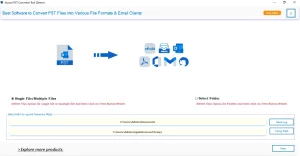
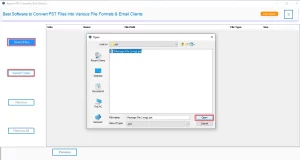
- After that, select the file/folder to open the PST file and click Open.
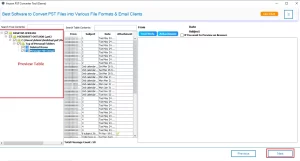
- Now, you can preview the mailbox data from the tree structure and click Next.
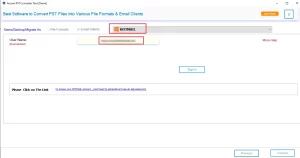
- Then, select the email client as Hotmail and sign in to the account.
- At last, apply the filters for specific transfer PST data to Hotmail and click the Convert button.
Outcomes of Using this Method
- Quick and reliable method for all users.
- This tool has various features and a simple layout.
- The method is good for importing multiple files at a time.
- It is suitable for both Mac and Windows for all versions.
- This method provides wide support for batch conversion.
- Support various email clients such as Hotmail, Yahoo Mail, Zoho Mail, etc.
- Additionally, you can import PST file to Yandex Mail using this software.
Conclusion
To sum up, you can see the two methodologies that will help you import PST file to Hotmail. You can obtain either of the two as per your specification. Here, we have also discussed the limitations and outcomes of both methods. Choose any one of them that will suit you to import your data, either single files or data in bulk.
Frequently Asked Questions
Q.1 Can I import a PST file directly into Hotmail via a web browser?
Ans. No, Hotmail (Outlook.com) does not support direct PST import through a web browser. Using the MacGater PST Converter Tool, you can easily convert PST files and migrate emails to a Hotmail account without needing Outlook.
Q.2 Will importing a PST file delete my existing Hotmail emails?
Ans. No, the MacGater PST Converter Tool safely imports PST data without affecting existing Hotmail emails. It adds new emails alongside your current mailbox data while preserving folder structure.
Q.3 Can I import a PST file to Hotmail on a Mac?
Ans. Yes. The MacGater PST Converter Tool supports PST migration to Hotmail on Mac systems, allowing users to transfer emails securely without data loss or compatibility issues.
About The Author:

Abhilash Dogra is a dedicated IT professional with more than 3 years of experience and has been a key member of Aryson Technology for the past 5 years. His expertise includes email migration and data recovery, with a strong focus on technologies such as MS Outlook and Office 365. In addition to this, Abhilash explores front-end technology and software development. He holds a Bachelor's degree in Computer Technology.