-
Written By Abhilash Dogra
-
Updated on November 25th, 2025
Import EML to Zoho Mail – Quick & Easy Guide
User Query: “What steps should I follow to import EML to Zoho Mail smoothly, allowing complete email migration, preserving attachments, and avoiding errors that usually occur with manual methods?”
Summary: Import EML to Zoho Mail to centralize your emails, making them easier to manage, secure, and accessible across devices. Storing emails in Zoho ensures better safety, backup, and business continuity while eliminating the risk of data loss from local drives. For a quick and reliable solution, the MacGater EML Converter is highly recommended. This software can support bulk migration, preserve folder structure, and ensure smooth transfer, making it perfect for both personal users and enterprise-level migration needs.
Why Import EML to Zoho Mail?
Before the method explanation, let us first understand why many users want to upload their EML files.
- Instead of keeping EML files scattered across different folders or old email clients, importing them into Zoho Mail keeps everything together. This makes searching and organizing much easier.
- Once EML files are in Zoho Mail, you can open them on your phone, laptop, or tablet. You’re no longer tied to the computer where the files were saved.
- Local EML files can get lost if your system crashes or the drive fails. Zoho Mail stores them on secure servers, giving you peace of mind with built-in backup and data protection.
- Mostly, users use different mail clients for old and new emails, which can be confusing. By importing EML to Zoho Mail, you can manage all your messages in one account without switching apps.
- Many companies need to bring old email data into Zoho when moving from other platforms.
Manual Method to Import EML to Zoho Mail
The manual approach can involve tying up Zoho Mail with Thunderbird. Here are the steps on how it works:
- Firstly, in the Zoho Mail account, enable IMAP.
- Next, sync Zoho Mail and Thunderbird accounts together using the Add Account option.
- Restart Thunderbird to find Zoho Mail in the left panel. Now, create a new folder in the configured Zoho Mail.
- Drag and drop EML files from the Thunderbird inbox in Zoho Mail.
- Now, open Zoho Mail to view if the EML files are received or not.
Limitations of the Manual Method:
- When you migrate thousands of emails, it can be time-consuming.
- Requires technical knowledge to set up IMAP and manage configurations correctly.
- May disrupt folder hierarchy, causing emails to appear out of order.
- Higher chances of data loss, which can lead to missing data or attachments.
Automated Method to Import EML to Zoho Mail
The MacGater EML Converter is a professional migration tool designed to make migration simple, fast, and reliable. It allows users to migrate EML to Zoho Mail without needing complex configurations. Which can be supportive for bulk import, folder hierarchy preservation, and complete email metadata retention, MacGater ensures zero data loss. It has a very user-friendly design that makes it suitable for both technical and non-technical users, offering a safe and cost-effective migration experience. Besides Zoho Mail, it can directly import EML Files to Outlook.
Steps to Import EML Files into Zoho Mail:
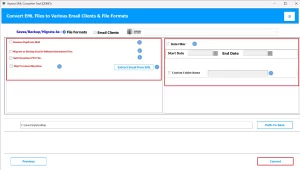
- First, install MacGater EML Converter on your system.
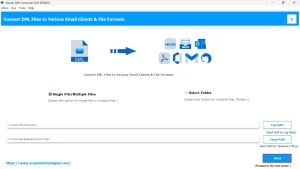
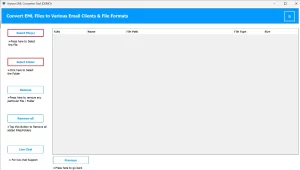
- After that, click on Add files/folder to add your EML files.
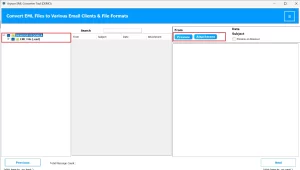
- Before conversion, preview emails and attachments to confirm selection.
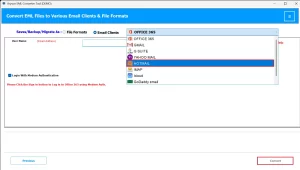
- After that, choose the output format as Hotmail for Outlook or Microsoft 365 for direct import.
- Enter your Hotmail credentials, like ID and Password, correctly.
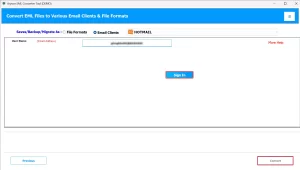
- Finally, start the process by clicking on Convert.
Conclusion
Throughout this blog, you got the verified solutions to to import EML to Zoho Mail. Which is to help users to keep their emails organized, and easily accessible throughout every devices. It make sure that the important communication and records remain safe, supports business continuity, and simplifies email management. Using the right tools, users can transfer their emails efficiently while preserving folder structure and avoiding data loss. It can be for personal use or enterprise-level needs, importing EML to Zoho Mail provides a reliable, hassle-free solution to centralize and protect all email data, improving both efficiency and safety.
Frequently Asked Questions
Q.1 How do I import an EML file into Zoho Mail?
Ans. You can either use an email client with Zoho IMAP setup or use MacGater EML Converter for direct import.
Q.2 What is the best way to transfer EML files to Zoho Mail?
Ans. The MacGater EML Converter is the best way because it allows direct, bulk migration with no technical complexity.
Q.3 Can I upload multiple EML files to Zoho Mail at once?
Ans. Yes. The MacGater EML Converter supports batch uploading of unlimited EML files at once.
Q.4 What should I do if my EML files fail to import into Zoho Mail?
Ans. Check IMAP settings if using manual methods. If using MacGater, recheck login credentials or re-import the files.
About The Author:

Abhilash Dogra is a dedicated IT professional with more than 3 years of experience and has been a key member of Aryson Technology for the past 5 years. His expertise includes email migration and data recovery, with a strong focus on technologies such as MS Outlook and Office 365. In addition to this, Abhilash explores front-end technology and software development. He holds a Bachelor's degree in Computer Technology.