-
Written By Abhilash Dogra
-
Updated on February 13th, 2026
Convert PST to HTML Using a Reliable & Secure Method
Overview: Email data accessibility has become more crucial than ever. According to the recent industry reports, there are over 85% of professionals still use the Outlook PST files to store emails. Whereas, more than 70% of users prefer browser-based or platform-independent formats for long-term accessibility & sharing. This increased gap creates a common question: “How to convert PST to HTML?” In order to get it answered, this blog provides the user with different solutions, including the MacGater Outlook PST Converter for a reliable conversion.
Why Do We Need to Export PST to HTML?
Given below are the various reasons why users choose to export Outlook PST to HTML for several practical reasons:
- HTML files can be opened in any web browser without Outlook.
- Users can easily share their emails across different platforms & devices.
- Moreover, you can preserve the email formatting, hyperlinks, & inline images.
- Additionally, the HTML format is ideal for legal documentation, audits, & archiving.
- Also, users don’t need to install Outlook to access their Outlook data.
Proven Solutions to Convert PST to HTML
In this section of the blog, we will discuss two different methods to convert PST files to HTML. The first method is the manual approach. Whereas the other one is to use the automated solution. Go through the details of both sections and pick the ideal one as per your expertise and preference.
Solution 1: Manual Method to Export Outlook PST to HTML
MSOutlook provides users with a basic option to convert PST emails to HTML, through which they can easily convert their PST files. But also keep this in mind that this approach is suitable only for exporting a small amount of email data.
Steps to Export Outlook PST to HTML Manually
- To begin, open Outlook on your computer.
- After that, choose the emails/files you want to export.
- Then, go to the File tab >> click on Save As.
- Under the Save as type dropdown list,>> select HTML.
- At last, choose the destination folder >> click on Save.
Limitations of the Manual Method
- This method is not suitable for converting a bulk of PST files.
- The user is required to install Outlook on their system.
- Moreover, you cannot export entire folders or mailboxes at once.
- Additionally, there is no advanced filter provided.
Solution 2: Optimised Solution to Convert PST to HTML
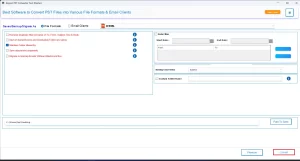
MacGater PST Converter is one of the most efficient software to convert PST files to HTML without any data loss. This software keeps all the emails and attachments intact during the conversion. Even if you are a non-technical user, you can import PST to AOL Mail, Thunderbird, Yahoo Mail, IMAP, etc., email clients. Also, the advanced features like Remove Duplicate mails, Skip previous migration, etc. makes the entire process simple.
Simplified Steps for PST to HTML Conversion
- Firstly, download & run the MacGater PST Converter on your PC.
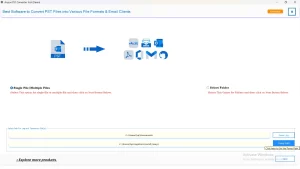
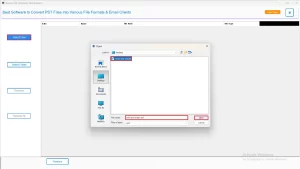
- After that, click on Select Files/Folders to add one or more PST files.
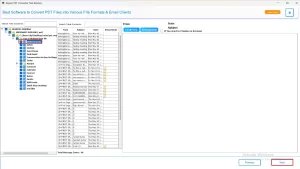
- Then, preview your PST emails in the right panel >> click Next.
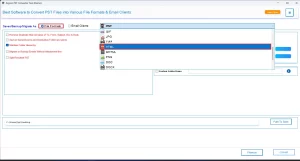
- Now, choose HTML as the output file format.
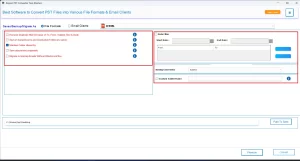
- Next, apply additional filters if required.
- At last, click on the Convert button to start the conversion.
Conclusion
Users often convert PST files to HTML to gain flexibility, accessibility, and long-term usability of Outlook data. Moreover, HTML files eliminate the platform dependency and simplify email sharing. You may use the manual or automated approach as per your needs and preferences. For users with small datasets, the manual method is sufficient. Whereas, for industry professionals, it is advised to use the automated solution above. In case of any conversion-related queries, reach out to our tech support team at MacGater.
Frequently Asked Questions
Q.1 How can I convert PST to HTML for free?
Ans. You can use the demo version of the MacGater PST Converter to convert PST to HTML for free. Steps to convert are:
1. Download and run the PST Converter on your PC.
2. Click Select Files/Folders to add the PST file(s).
3. Preview the PST emails and click Next.
4. Choose HTML as the output file format.
5. Apply filters if required.
6. Click Convert to start the PST to HTML conversion.
Q.2 Can I open PST emails in HTML format without Outlook?
Ans. Yes. With the help of the above automated solution, you can open PST emails in HTML format without Outlook.
Q.3 Is manual PST to HTML conversion recommended?
Ans. Manual conversion is only recommended for a small number of emails. Whereas, for a bulky & secure conversion, the MacGater PST Converter is recommended.
About The Author:

Abhilash Dogra is a dedicated IT professional with more than 3 years of experience and has been a key member of Aryson Technology for the past 5 years. His expertise includes email migration and data recovery, with a strong focus on technologies such as MS Outlook and Office 365. In addition to this, Abhilash explores front-end technology and software development. He holds a Bachelor's degree in Computer Technology.