-
Written By Abhilash Dogra
-
Updated on November 25th, 2025
How to Convert PST to DOC and Save Outlook Emails Easily
Summary: If you use Microsoft Outlook on macOS, you likely know that all mailbox data is stored in PST files. While PST files can be a viable backup option, they are not easy to use for sharing or reading on technology other than Outlook. The simplest workaround would be to convert your PST files to DOC, then you can add, change, or print the emails in Microsoft Word. We will provide safe manual and automatic methods to convert PST to DOC. To make the process easy, we will provide a MacGater PST Converter for Mac that is safe and reliable.
Why should you Convert PST File to Word Document?
There are plenty of reasons users convert their Outlook PST into Word.
- Read your messages from anywhere: Once you have converted your PST into a Word document, you can open the file on any computer, without needing Outlook.
- Easily edit & organize: You can easily edit and highlight or add notes to the DOC file to help you remember later.
- Better options for sharing: You can easily attach DOC files to your reports or future emails to share with others.
- Options for easier backup: Once you create DOC files, your email messages are easier and more secure to access.
How to Convert PST to DOC
You’ll want to consider converting a PST file to DOC if you want to access your Outlook emails in a more shareable and editable format. DOC files allow you to open and edit your email messages directly in Microsoft Word without opening Outlook. You may want to do this for documentation, legal, or personal purposes. When you convert Outlook PST to Word format, it makes your data easier to access and manage. Below are methods to effectively convert.
Manual Method to Convert PST to DOC
Outlook has provided a simple way to manually save emails so that they are readable. To do this, follow these steps.
- Start Microsoft Outlook on your Mac.
- If you have an email selected that you want to save, select the email.
- Select File > Save As.
- Change the file type to Text Only (*.txt) and save this text file.
- Change programs, but open Microsoft Word.
- In Word, select File > Save As > Word Document (*.doc) to save PST Emails as DOC.
Limitations of Manual Conversion
The manual process is a straightforward one, but it has many limitations:
- Works only with one email at a time.
- Does not save attachments or maintain email formatting.
- To use the manual method, you must have Outlook installed on your computer.
- It may not work for PST files that are too large.
Use Outlook PST Converter for Mac – The Best Automated Solution
The MacGater PST Converter Tool is a trustworthy solution to convert Outlook PST format files into DOC. It facilitates the user in converting PST files to DOC in a simple way while preserving the email message’s content, formatting, and attachments.
Steps to Convert PST to DOC Using Outlook PST Converter for Mac
- Launch the Mac PST file converter on your system.
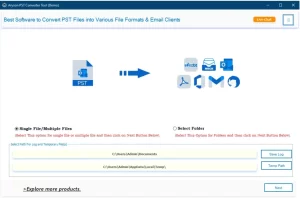
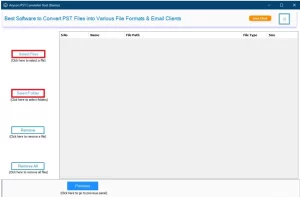
- Select the PST file you need and click on the Select button.
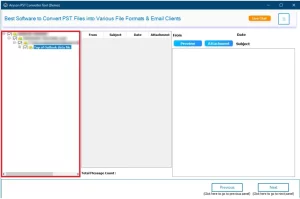
- Check the folders and preview them, and click Next.
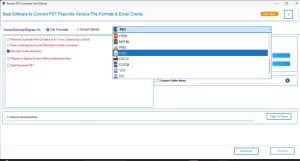
- From the drop-down menu, choose DOC and opt for the additional features.
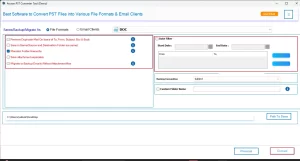
- Lastly, click the Convert button to Export PST to DOC.
Key Features:
- Import PST to IMAP and other formats on macOS.
- Supports the conversion of emails, attachments, contacts, calendars, and notes.
- Offers single-file and multiple-file/Folder conversion modes.
- Transfers PST files directly to email clients like Gmail, Yahoo, IMAP, and Thunderbird.
- Maintains the email formatting, hierarchy, and metadata.
- Fully compatible with all macOS versions, including Sonoma, Ventura, Monterey, and Catalina.
- Does not require stress and time for Microsoft Outlook installation.
Conclusion
In this blog, we have an easy way to open, edit, or share your Outlook emails without using Outlook. Manual methods work for a couple of emails, but are not useful for bulk conversions. The PST Converter mentioned above makes the task simple with its user-friendly interface and advanced features. It allows you to quickly convert PST to DOC on macOS while retaining full data integrity and formatting to keep your business workflow going uninterrupted.
Frequently Asked Questions
Q.1 Is it possible to export PST emails directly to DOC format?
Ans. Yes. The Outlook PST Converter for Mac allows you to export PST emails directly into DOC files without needing Outlook.
Q.2 Can I save individual PST emails as DOC files?
Ans. Yes. You can manually save individual emails as DOC files using Outlook or use the tool for multiple email conversions.
Q.3 Do I need Microsoft Outlook to convert PST files to DOC?
Ans. No. The converter works independently and doesn’t require Outlook to be installed on your Mac.
Q.4 Will converting PST to DOC preserve email attachments?
Ans. Yes. The software keeps attachments, folder structure, and formatting intact during conversion.
Q.5 How do I ensure no data loss when converting PST files to DOC?
Ans. Use the Outlook PST Converter for Mac, which guarantees a secure and loss-free conversion process.
About The Author:

Abhilash Dogra is a dedicated IT professional with more than 3 years of experience and has been a key member of Aryson Technology for the past 5 years. His expertise includes email migration and data recovery, with a strong focus on technologies such as MS Outlook and Office 365. In addition to this, Abhilash explores front-end technology and software development. He holds a Bachelor's degree in Computer Technology.