-
Written By Abhilash Dogra
-
Updated on February 20th, 2026
How to Convert MSG to DOC: Beginner’s Guide
Summary: MSG files help to store emails in Microsoft Outlook, which include all the attachments and metadata, but can’t be easily shared outside Outlook. In contrast, DOC files are widely supported by word processors such as Microsoft Word or Google Docs, in which users can easily modify and share. This difference rates the need to convert MSG files into a more accessible format. In this blog, we will discuss the most effective ways to convert MSG to DOC, including the MSG Converter, to simplify the process.
Why Users Prefer to Convert MSG File to DOC?
Understand the common reasons for the conversion, which helps you to choose the right approach and get better results. Here we have discussed the main benefits
- Users can make emails easy to format in Word or other document editors.
- In DOC format, users can share with people who don’t use Outlook.
- Moreover, you can keep email attachments intact in an editable file.
- Subsequently, DOC helps to create official documentation from emails.
- Users can easily print or archive emails in a professional format.
- Also, the DOC reduces reliance on email clients to manage messages.
Best Techniques to Convert MSG to DOC
In this section, we will cover the top two approaches that help users to convert their MSG files into DOC format. Users can choose the appropriate methods according to their requirements.
- Manual Method (Using MS Word)
- Professional Approach (Using MSG Converter)
Technique 01: Native Approach to Convert MSG to DOCX
For users who want a quick yet cost-free way to convert a few MSG files, the manual approach using Microsoft Outlook and Word is effective.
Steps to Convert Outlook MSG to DOC Manually:
- First, you have to open the MSG file in Microsoft Outlook.
- After that, you need to click File and press Save As.
- Then, you have to pick a destination folder >> HTML as the file type.
- Now, you need to open the saved HTML file in Microsoft Word.
- Afterwards, in Word, you have to press File and select Save As.
- At the end, pick either DOC or DOCX and proceed to save it.
Shortcomings of the Manual Approach
- Only practical for a small number of files; large batches are time-consuming.
- This approach can result in formatting issues in the final DOC file.
- Moreover, there is no support for batch or automated conversion.
- Subsequently, there is a higher chance of errors during manual processing.
- Also, it is not ideal for professional or large-scale email conversion tasks.
Technique 02: Professional Approach to Convert MSG to DOC
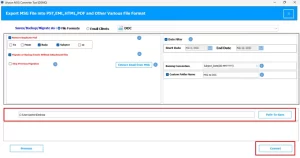
MSG Converter is a reliable solution for those users who want to overcome the drawbacks of the manual approach. It helps in the fast and accurate conversion of MSG files into DOC format. This utility is helpful for both individual & bulk conversion and provides additional filters for a smooth process. With this same software, users can import MSG to Thunderbird and other formats such as HTML, CSV, and many more.
Quick Tutorial to Convert Outlook MSG to DOC:
- First, you have to install and launch MSG Converter.
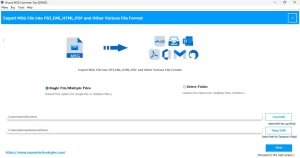
- After that, use Select Files/Folder to import the MSG files to convert.
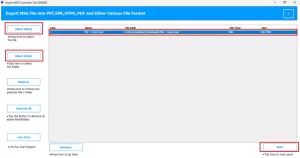
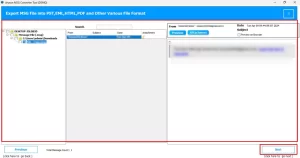
- Then, review and preview the added files, and click Next.
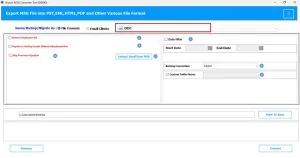
- Now, you have to choose DOC as the required output format.
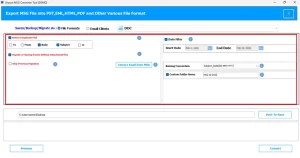
- Next, apply any necessary filters, such as the remove duplicate mails option.
- Finally, pick a destination folder >> Convert to begin the conversion.
Why Users Prefer Professional MSG to DOC Conversion Tools?
- It supports bulk conversion, saving time when working with many MSG files.
- Helps users to maintain email formatting and folder structure perfectly.
- This tool provides filters to select specific emails for conversion.
- Moreover, this is faster and more reliable than manual methods.
- Subsequently, to reduce the risk of data loss during conversion.
End Note
In this blog, we have explored how to convert MSG to DOC in a simple way. We shared the manual method and the professional approach for more accurate results. This helps you to opt for the right method based on your requirements. Hopefully, this article supports you in carrying out the conversion with less effort and time. If you still need any help, you can contact our support team for assistance.
Frequently Asked Questions
Q.1 Can I convert Outlook MSG files to DOC without Outlook installed?
Ans. Yes, you can. Using MSG Converter, you do not need Microsoft Outlook installed on your system. This tool can directly read and convert MSG files without depending on the Outlook application.
Q.2 What is the best tool to convert MSG to DOC?
Ans. A reliable option is MacGater MSG Converter. It supports converting MSG files to DOC and DOCX formats while keeping email formatting, attachments, and metadata intact.
Q.3 Can I export MSG to DOC without losing images or attachments?
Ans. Yes. When you use a professional tool, all email elements, such as images, attachments, and formatting, are preserved during the conversion.
Q.4 How do I convert MSG emails to DOCX instead of DOC?
Ans. You can easily choose DOCX as the output format in the tool.
Quick Steps:
1. Open the MSG Converter Tool.
2. Add the MSG files you want to convert.
3. Select DOC as the saving format.
4. Choose a destination folder.
5. Click Convert to complete the process.
Q.5 Can I export MSG files to DOC in bulk from multiple folders?
Ans. Yes, the discussed tool supports bulk conversion. You can add multiple MSG files or entire folders at once and convert them together.
About The Author:

Abhilash Dogra is a dedicated IT professional with more than 3 years of experience and has been a key member of Aryson Technology for the past 5 years. His expertise includes email migration and data recovery, with a strong focus on technologies such as MS Outlook and Office 365. In addition to this, Abhilash explores front-end technology and software development. He holds a Bachelor's degree in Computer Technology.