-
Written By Abhilash Dogra
-
Updated on November 25th, 2025
How to Convert EML to EMLX – Easy Methods
User Query:
I’ve switched from Windows to macOS and have a large collection of old EML files from my previous email client. Apple Mail doesn’t seem to open them directly. How can I convert these EML files to EMLX without losing any data?
Summary: Mostly, emails often look simple, but they are different file formats that can cause compatibility issues when moving between devices. EML and EMLX files can sound the same, but are structured differently, which makes them different for direct use. Several solutions can be effective, and one of the recommended solutions is to use the MacGator EML Converter. This automated utility can convert EML to EMLX with ease and accuracy.
Brief Overview of EML and EMLX
When we look at the EML and EMLX, they both store individual email messages, but they are designed for different industries.
- EML: A widely used email file format that can work with email clients such as Microsoft Outlook, Mozilla, etc. It also stores all parts of an email, including attachments and formats.
- EMLX: Apple Mail has a default email format, which is optimized only for Apple OS. Which is similar to the EML, it has a different internal structure, making it incompatible with many non-Apple applications.
Top 5 Reasons to Migrate EML Emails to EMLX
These queries are very common when it comes to the conversion of the EML to emlx. Possible scenarios are given below:
- Switching to a Mac
If you’re moving from Outlook, Thunderbird, or another Windows-based email app to Apple Mail, EMLX is the native format you’ll need.
- Better macOS Search
EMLX files work with Spotlight, which makes it super easy to find any email in seconds.
- Long-Term Storage
If you want to archive emails for years without worrying about compatibility issues, EMLX is a safe bet for the Apple ecosystem.
- Business Migration
When the big companies shift from Windows to Mac, they often have a large amount of emails.
- Attachment Handling
Some applications on Apple Mac can handle attachments better in EMLX format, which results in reducing the risk of missing files during migration.
How to Convert EML to EMLX Files
You can convert EML to EMLX either manually using Apple Mail. The manual method is suitable if you have only a few files and already use Apple Mail on Mac. However, for bulk conversion or when you want a faster, hassle-free process, using a professional tool like MacGator EML Converter is recommended. This ensures accurate conversion without losing data or folder structure.
Method 1: Manually Convert EML files to EMLX Files Using Apple Mail
If you own a Mac and have Apple Mail installed, you can manually convert EML to EMLX without additional software. These methods work with accuracy for a small number of files.
Steps to Convert EML Files to EMLX:
- Firstly, you have to use an external drive, cloud service, or network transfer.
- Navigate to Apple Mail from the Applications folder.
- Go to File and click on Import Mailboxes.
- Select the .eml file and click Continue.
- The imported data is stored in the emlx format by Apple Mail.
Another alternative to the above method for EML to EMLX Conversion
- Launch Apple Mail on your Mac.
- Either create a fresh mailbox or pick an existing one where you’d like the converted messages to be saved.
- Find the EML files you wish to convert on your system.
- When you drag and drop these files into the selected Apple Mail folder.
Method 2: Convert EML to EMLX with Automated Utility
When the user has a large number of EML files to convert, doing it manually can be slow and complex for a normal person. In this case scenario, the MacGator EML converter is the best option. This software is designed to quickly process bulk EML files and save them in the EMLX format without altering the original content or folder structure. can also import EML to Gmail and other email clients.
Steps to export EML File to EMLX:
- Firstly, download and install the MacGator EML Converter on your system.
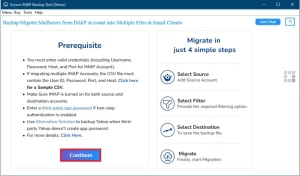
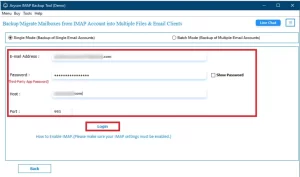
- Click on select files/folders to add your EML data into the software.
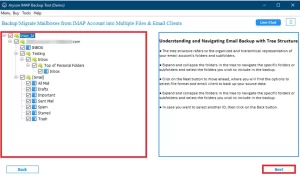
- When the files are inserted, you can simply select and preview the file before conversion.
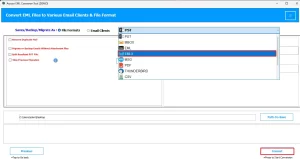
- Next, choose the EMLX format from the available options in the drop-down menu.
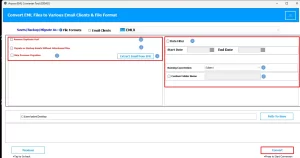
- Lastly, the advanced features can be added before hitting the convert button.
Conclusion
When you convert EML to EMLX file format, it becomes easy to use the file for Apple users. In this post, we have given an understanding of the EML to emlx and its solution. While manual techniques can work for small-scale tasks, automated solutions offer faster speed, better accuracy, and bulk file handling. You can always choose the right solution that is best for your requirements and make your data safe.
Frequently Asked Questions
Q.1 What is the difference between EML and EMLX files?
Ans. EML files are used by Windows-based email clients like Outlook and Thunderbird, while EMLX is the format used by Apple Mail on macOS. Both store individual emails, but their structure is different, so they aren’t directly interchangeable.
Q.2 Can I export EML files directly to EMLX?
Ans. Not directly. You can either use Apple Mail to import and convert them manually or use a professional tool to quickly convert multiple EML files to EMLX.
Q.3 Which is the best tool to convert EML files to EMLX?
Ans. A professional converter like MacGator EML Converter is recommended because it can handle batch conversions, preserve attachments and formatting, and save time compared to manual methods.
Q.4 Can I batch convert multiple EML files to EMLX?
Ans. Yes. Tools like MacGator EML Converter allow you to select multiple files or entire folders and convert them all at once without losing any data.
About The Author:

Abhilash Dogra is a dedicated IT professional with more than 3 years of experience and has been a key member of Aryson Technology for the past 5 years. His expertise includes email migration and data recovery, with a strong focus on technologies such as MS Outlook and Office 365. In addition to this, Abhilash explores front-end technology and software development. He holds a Bachelor's degree in Computer Technology.